Use cases
Create and manage AI use cases with risk classification, framework linking, team assignment, and approval workflows.
Overview
A use case is how you describe an AI system and what it does inside your organization. Think of it as the container that holds everything together: risks, frameworks, assessments, controls, vendor relationships, and linked models all hang off a use case.
Every use case gets a unique ID (UC-1, UC-2, UC-3 and so on) and follows the AI system from scoping through deployment. You set its risk classification, assign someone to own it, attach compliance frameworks and build up a risk register, all from one place.
Creating a use case
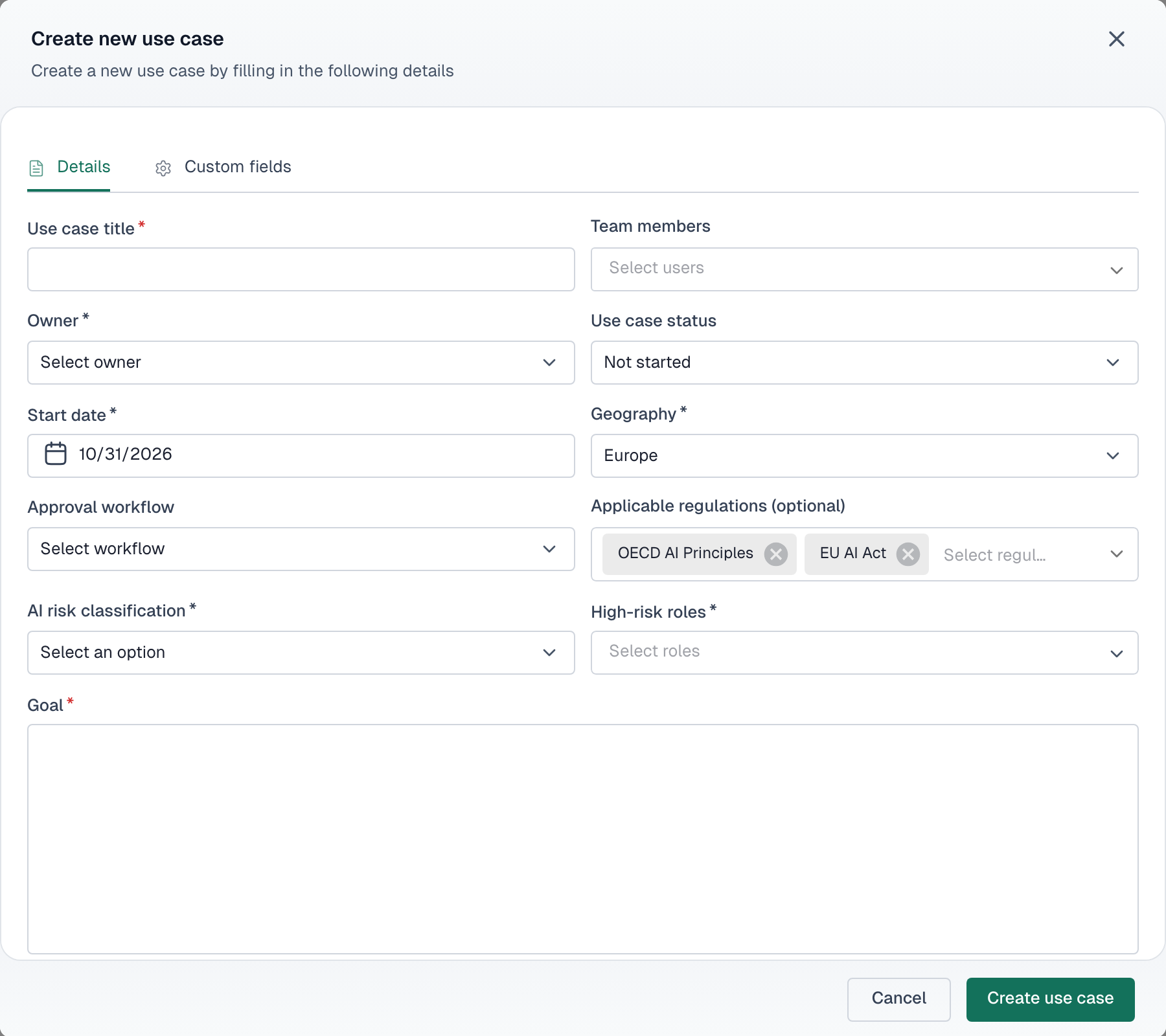
Head to the Use cases page and hit New use case. You might see a short screening step asking whether the project involves AI. Answer or skip it. The creation form comes next.
What you need to fill in
- Title: A short name, up to 64 characters. Has to be unique in your organization.
- Goal: What the AI system is supposed to accomplish, up to 256 characters.
- Owner: Who is responsible. They get an email when you assign them.
- External owner: Choose this in the owner list when the person responsible has no VerifyWise account, and enter their name and email. They get email notices only. They have no login and no access to VerifyWise, and the use case shows as "Name (external)".
- Start date: When work started or is expected to start.
- AI risk classification: Pick one: Prohibited, High risk, Limited risk, Minimal risk, or Out of scope. This drives how much oversight the EU AI Act expects. Not sure? Use the risk classification wizard described below.
- High-risk roles: Your organization's EU AI Act role for the AI system: Provider, Deployer or both. Choose both when you build the system and also use it yourself. The use case then lists the requirements of both roles, and compliance progress, readiness and reports count them.
- Geography: Where the system operates: Global, Europe, North America, South America, Asia, or Africa.
- Target industry: The sector where the AI system is used.
Optional fields
- Description: A longer explanation of the system and how it works.
- Members: Other people who need access. The owner is added automatically.
- Status: Starts at "Not started." You can also choose In progress, Under review, Completed, Closed, On hold, or Rejected.
- Approval workflow: If your organization requires sign-off before work begins, pick a workflow here. Frameworks won't be created until the use case is approved.
Attaching frameworks
During creation you can pick which compliance frameworks apply in the Applicable regulations (optional) field. All frameworks are built in, from EU AI Act to HIPAA, PCI-DSS and NYC Local Law 144, so there is nothing to install. You can add or remove frameworks later from the use case's Frameworks/regulations tab with Manage frameworks/regulations. See Adding frameworks for the full list and the rules.
Frameworks can be scoped to one use case (project-based) or shared across the whole organization. Go with project-based when different AI systems face different regulatory requirements.
Default region and frameworks
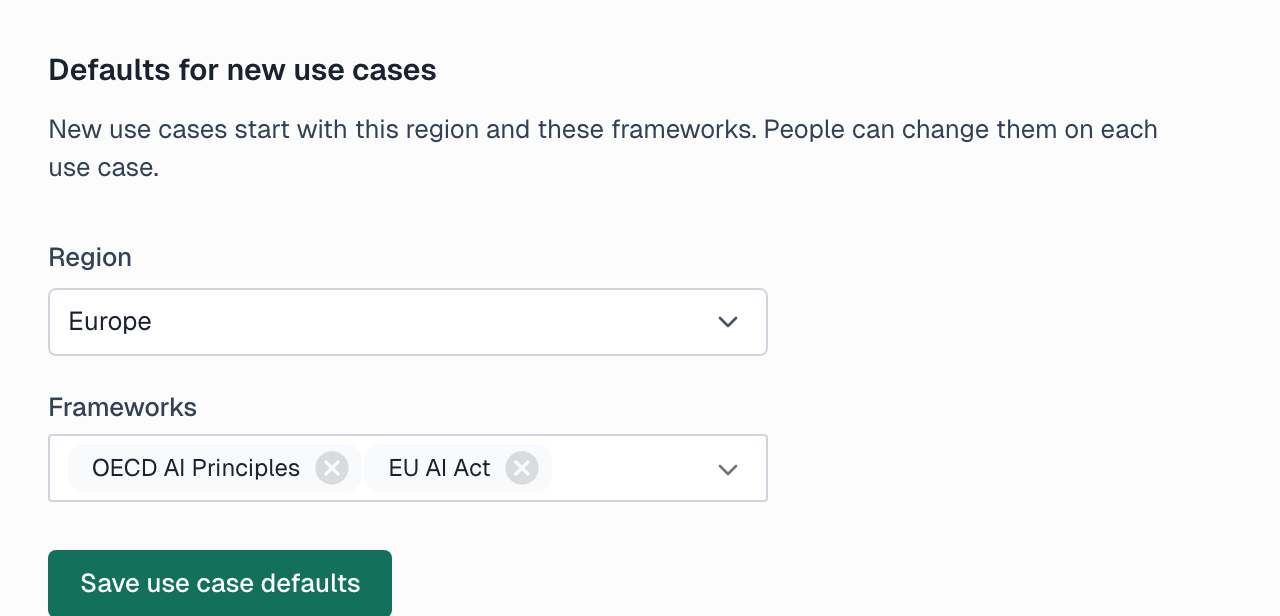
Admins can set a default region and default frameworks under Settings, Organization, Defaults for new use cases. A new project-based use case opens with them filled in, for example Europe with the EU AI Act. People can still change both before they save. The defaults fill only fields nobody has touched yet. They never change existing use cases.
Inside a use case
Click a use case to open it. The detail view is split into tabs.
Overview
The landing tab. Shows the use case details, which frameworks are linked, a breakdown of risk levels and the AI apps linked to the use case.
Use case risks
A risk register scoped to this use case. Create, edit, and delete risks here. Each risk can be tied to specific framework controls and assessments. A badge on the tab shows the count.
Anything you create here also shows up on the global Risk management page alongside risks from other use cases.
Linked models
Which AI models from your inventory are tied to this use case. Link and unlink them here. The connection makes it clear to auditors which models serve which business processes.
Frameworks and regulations
Split into two sub-tabs. Controls tracks progress against each framework's requirements. Assessments tracks questionnaire-style evaluations. Completion percentages update automatically as you work through items.
CE marking
For AI systems that require a CE mark under the EU AI Act. This tab is available on every use case and walks through the conformity assessment steps.
Activity
A chronological log of every change made to the use case: who changed what, when, and the old and new values. Changes to the use case category, purpose, audience and deployment context are logged too. A save only logs the fields whose values changed. Useful for audits and internal reviews.
RACI
Use this tab to see who is responsible, accountable, consulted and informed for the use case. Organizational use cases do not have it. Most roles fill in from data you already keep and change when that data changes:
- Accountable: The use case owner, including an external owner.
- Responsible: Team members other than the owner. People assigned to an open task linked to one of the use case's framework controls also get this role. Completed or deleted tasks do not count. Tasks linked only to a vendor, model or policy do not count either.
- Consulted: Approvers in the use case's active approval workflow.
- Informed: Set by hand only.
Hover over a filled role to see where it came from. Admins and Editors can select a role to add or remove it. Add person gives another person in the organization a role. Other users see the matrix read-only. An external owner's row cannot be changed.
Removing a role overrides the data that gave it. Select the role again to restore it. A warning appears when no person or more than one person is accountable. You can save either way. Use the export menu to download the matrix.
Monitoring
Post-market monitoring for deployed AI systems. Track ongoing performance, incidents, and compliance status after the system goes live.
Settings
Change the basics (title, goal, status), transfer ownership, manage team members, add or remove frameworks, or delete the use case. Every edit gets recorded in the activity log.
Saving only changes the fields you edited. The AI risk classification and high-risk roles show only while the EU AI Act is selected. When it is not, saving keeps them as they are, so a classification set by an intake form or the API is not lost. The classification list has Prohibited, High risk, Limited risk, Minimal risk, GPAI, General risk and Out of scope.
Deleting a use case keeps its risks in the risk register. A risk that was linked only to this use case is then linked to none, so everyone in the organization can see it while it is active. When there are such risks, the delete dialog says how many and gives you a choice. Archive these risks is selected by default: the risks are archived as the use case is deleted, and an archived risk with no use case link is visible only to Admins, its action owner and its approver. Keep them visible to everyone deletes the use case and leaves the risks active. Show risk names lists them. To keep a risk active and private, cancel and link it to another use case first. If the dialog cannot check the risks, it says that risks linked only to this use case may become visible to everyone and still offers the same choice. The archive and the delete happen together, so if either fails, nothing changes and the dialog shows an error. Deleting an organizational project from the Framework page uses the same dialog. Deleting a use case through the AI advisor or the Jira Assets integration archives these risks as well. The AI advisor deletes a use case only for a user whose role can archive risks.
EU AI Act risk classification wizard
When the EU AI Act is one of the use case's frameworks, the Settings tab shows a Calculate your AI risk classification link next to the AI risk classification field. It opens a questionnaire that follows the EU AI Act: scope (Article 2), the prohibited practices (Article 5), products covered by Annex I and the high-risk areas of Annex III (Article 6, including the Article 6(3) exemption), and the transparency obligations of Article 50. Each answer decides which question comes next, and the role question asks whether you are the provider, the deployer or both. The follow-up questions for each Annex III area accept several answers, and any listed use you choose makes the system high risk.
The result shows one of five levels: Prohibited, High risk, Limited risk, Minimal risk or Out of scope (systems developed and put into service only for scientific research and development, or still being researched, tested or developed before they are placed on the market or put into service). Below the level you see the reasons, each with its article and, where one applies, the date it applies from, and the obligations that follow for your roles and for the route that made the system high risk.
Saving sets the use case's AI risk classification and, when you answered the role question, its high-risk roles. The change history records both. VerifyWise keeps every saved classification. The wizard opens with your unsaved draft if there is one, otherwise with the answers from the most recent saved classification. A use case created from an intake form with the EU AI Act risk step starts with the submitter's answers.
Approval workflows
Some organizations need sign-off before a use case moves forward. If you assign an approval workflow during creation, here is what happens while it is pending:
- Basic fields (title, goal, description, status) stay editable
- Frameworks, Risks, and Linked models tabs are locked
- Framework creation is held back until approval comes through
- A rejection keeps the tabs locked and updates the status accordingly
After approval, the deferred frameworks get created and all tabs open up.
The workflow must be active, made for use cases, and have an approver on every step. Otherwise the use case is not saved and the form shows why on the Approval workflow field.
While a request is pending or after it is rejected, only people who manage approval workflows can change or remove the workflow. If you sent the request, withdraw it from the approval request instead. Removing the workflow from a rejected use case does not create its frameworks. They wait until a new review approves it. Workflow changes show up in the use case's history.
Lifecycle: in review, planned, live, retired
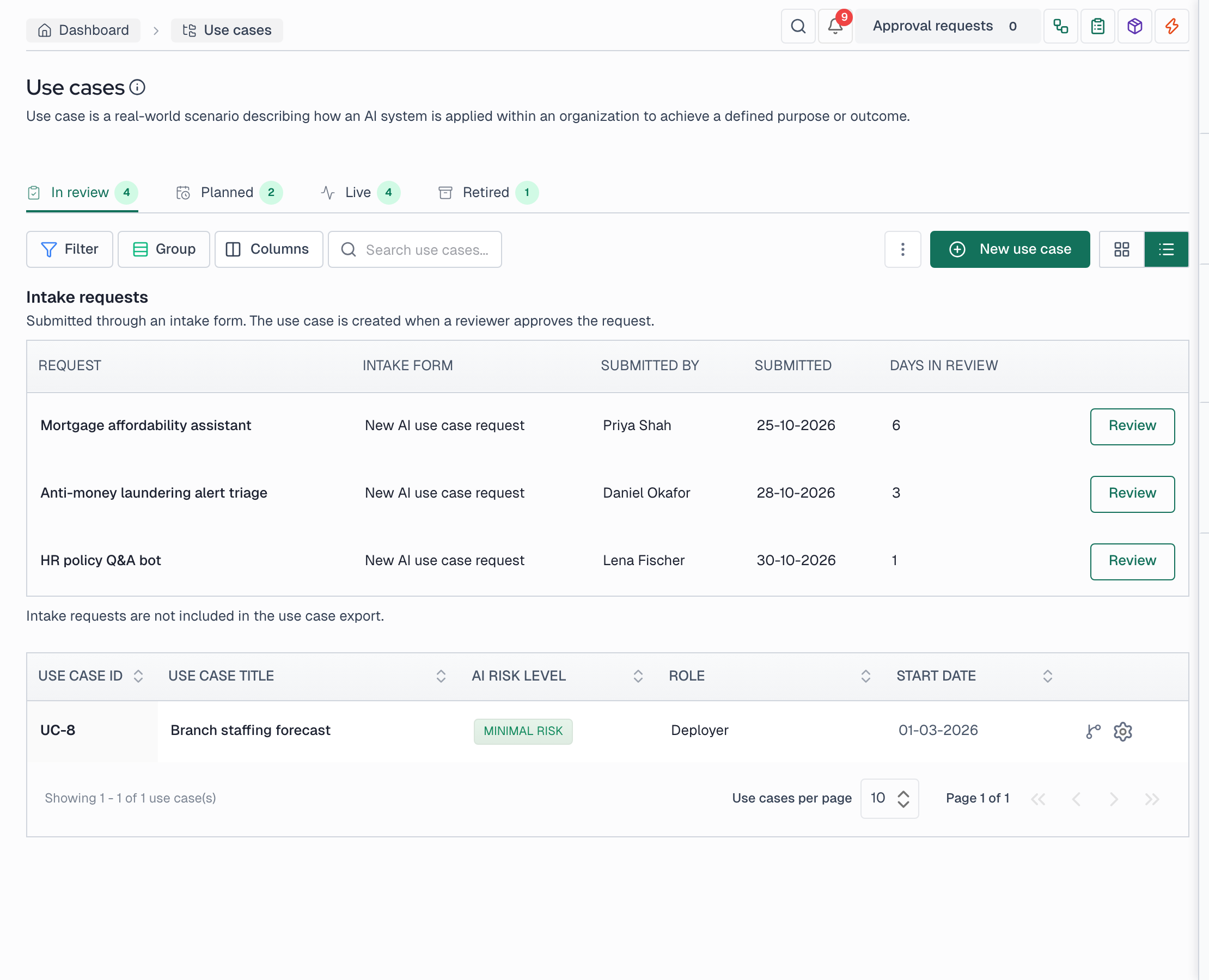
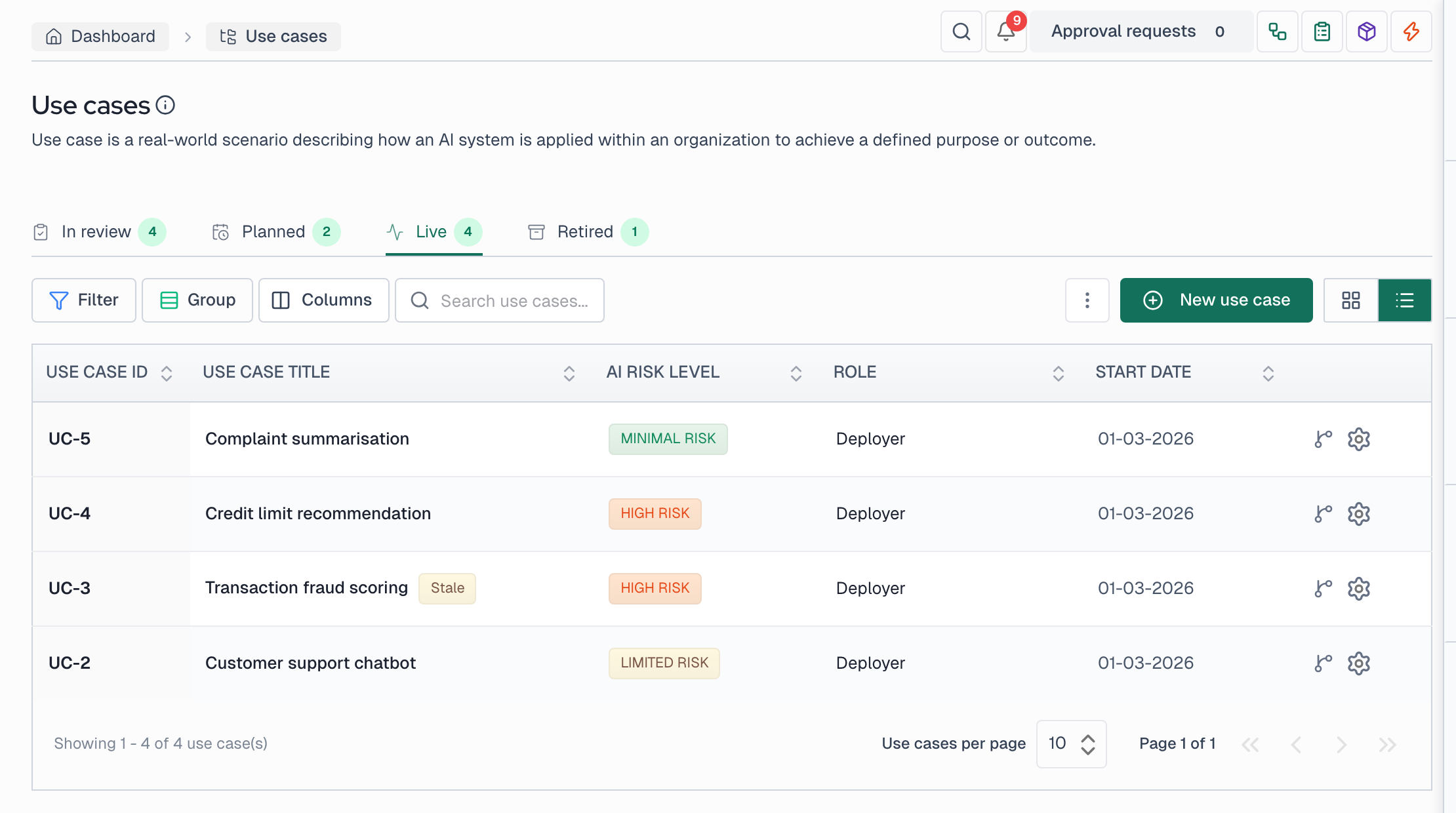
The Use cases page splits the inventory into four tabs, each with a count. The lifecycle stage is separate from the status field. Keep using the status to track the work.
- In review: An approval request is open, or an intake request is waiting for a decision. Intake requests are listed under the search bar, and Review opens the submission. The search covers them too, but the export leaves them out. The use case is created only when the request is approved. It then arrives as planned. Rejected and superseded requests are not shown. Days in review count from the first time a request was submitted.
- Planned: Approved, or created without an approval workflow, but not in use yet.
- Live: In use. The owner recorded a go-live date.
- Retired: No longer in use. It stays in the inventory with its history.
Open a use case to move it along. On the Overview tab, choose Mark as live and pick the go-live date (today or earlier), or choose Retire. A planned use case that never launches can be retired too. A use case with an approval workflow cannot be marked as live until a review approves it, so not while its request is pending, was rejected or was withdrawn. A rejected use case stays rejected even if an admin removes its workflow: attach a workflow and get it approved first. The same panel holds the department. The dashboard uses it to group live use cases.
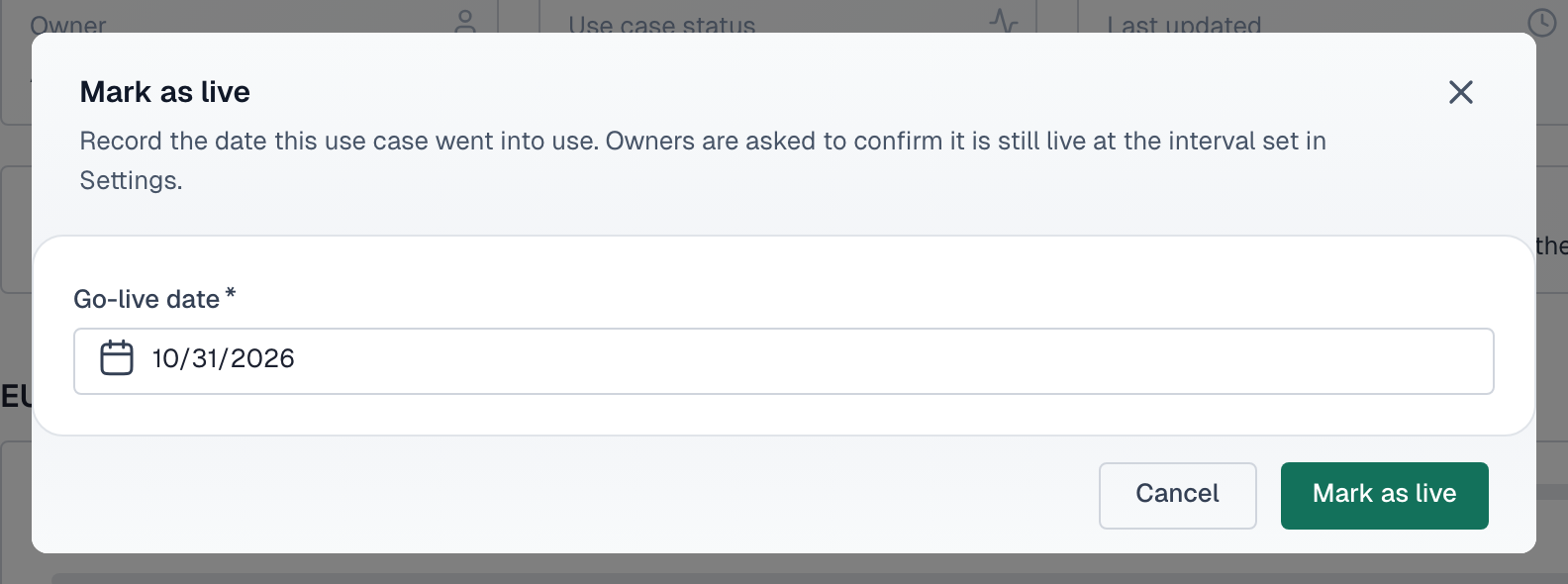
Admins, Editors and the use case owner can change the lifecycle. Auditors cannot, even when they own the use case.
Still-live check
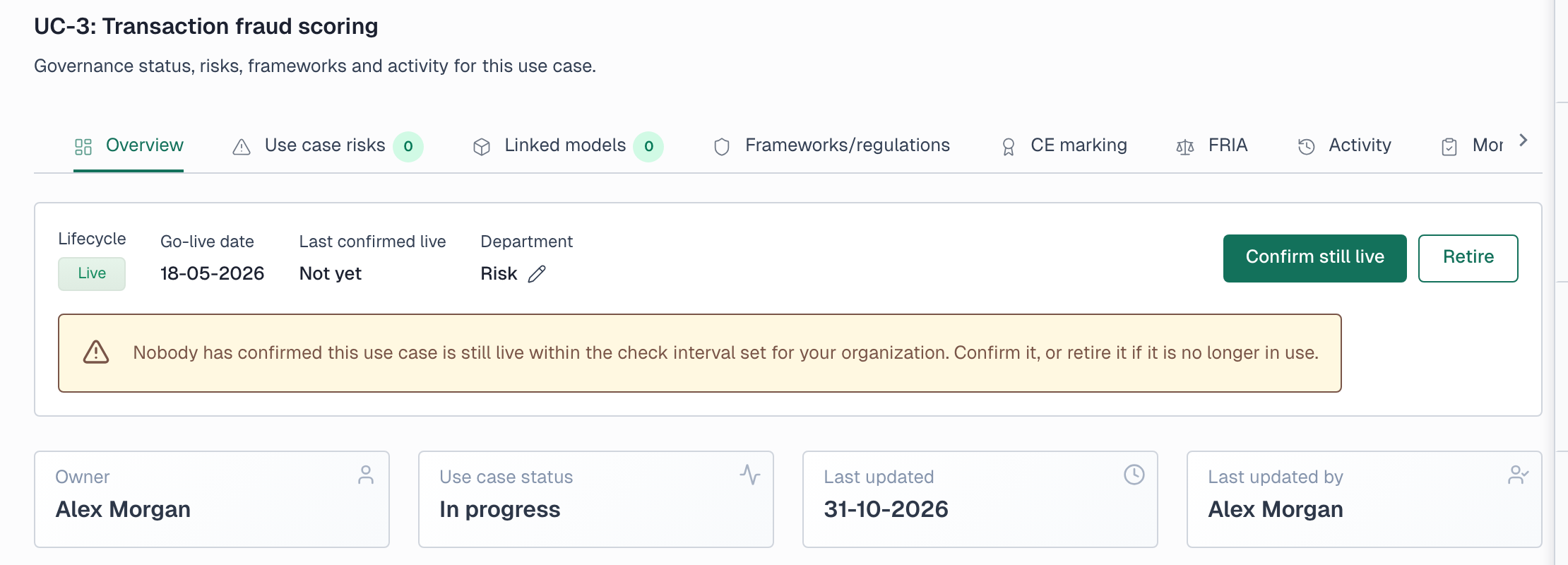
The owner of a live use case confirms from time to time that it is still in use. If nobody confirms it within the check interval, it gets a Stale marker in the list. Its owner gets an email asking them to confirm it or retire it, once per interval until someone acts. To confirm, choose Confirm still live on the Overview tab. An external owner cannot sign in to confirm, so their email names a colleague to contact, and someone with edit access confirms or retires the use case for them.
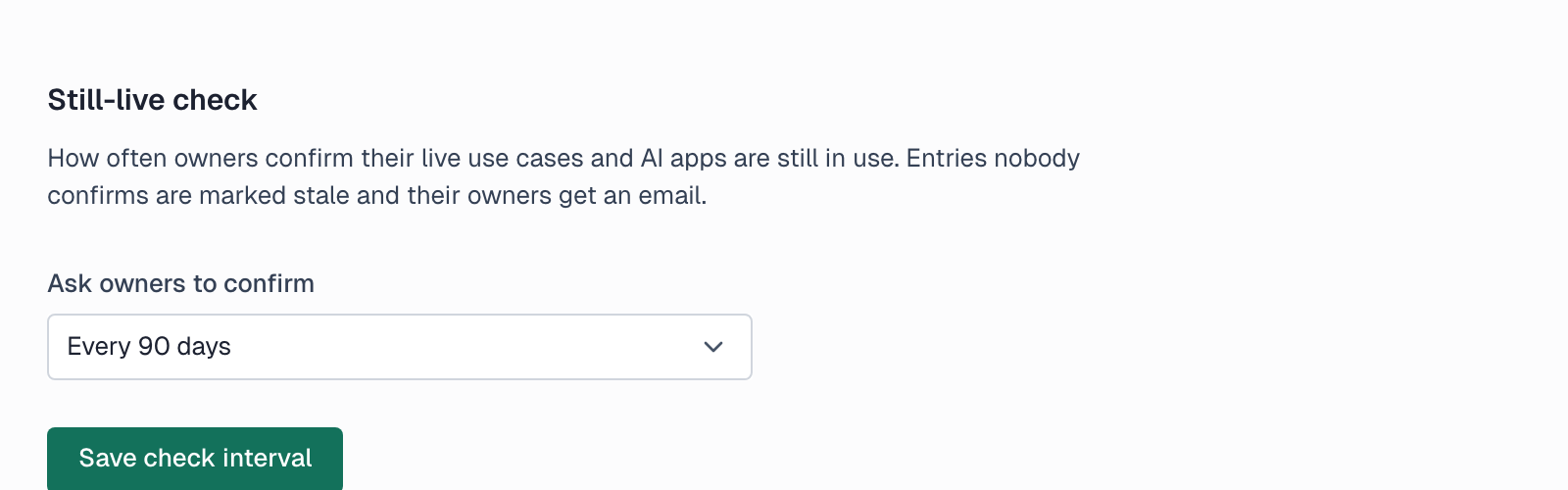
Admins set the interval under Settings, Organization, Still-live check: every 30, 90 or 180 days. The default is 90 days. The same setting covers AI apps.
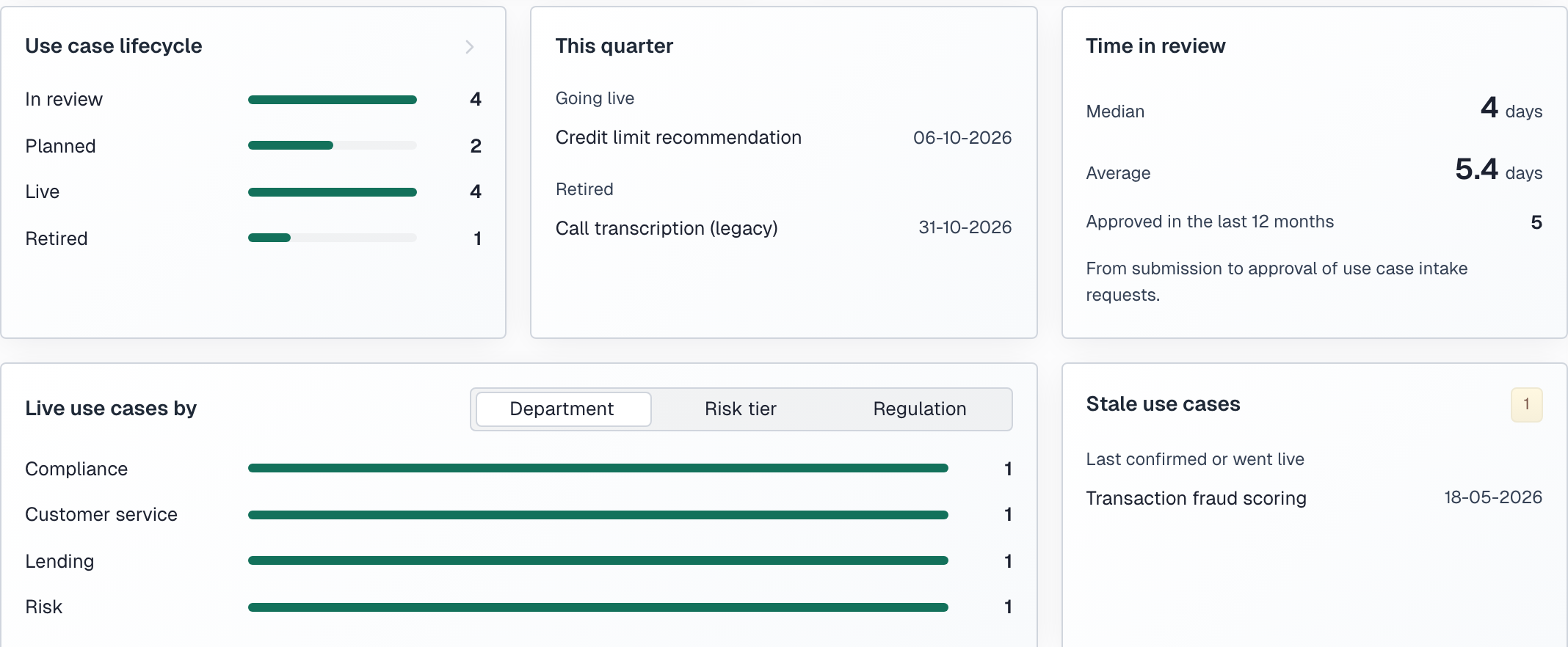
The dashboard shows the count per stage and what went live or was retired this quarter. It also groups live use cases by department, risk tier or regulation. A separate card lists the stale entries. Time in review gives the median and average number of days approved intake requests waited for a decision over the last 12 months.
Working with the list
The main page shows every non-organizational use case. A few tools help you find what you need:
- Search: Looks through use case titles and UC IDs.
- Filter: Narrow by risk level, owner, status, or start date. In the new look, pick a filter chip above the table and choose a value, and use the search box to find a use case by name; in the classic look, the Filter button also filters by name.
- Columns: Show or hide columns: UC ID, title, risk classification, role, start date, last updated.
Export
Pull the full list into CSV or Excel. The export covers UC ID, title, risk level, role, start date, last updated, owner, and status.
Defining scope
Each use case can carry a detailed scope that pins down the technical and compliance profile of the AI system.
- AI environment: Where and how the system runs.
- Technology type: Machine learning, NLP, computer vision, or another category.
- Novel technology: Whether it uses new or experimental AI techniques.
- Personal data: Whether the system handles personal data (matters for GDPR).
- Monitoring: Whether you have post-deployment monitoring running.
- Unintended outcomes: Adverse effects spotted during scoping.
From your answers, VerifyWise calculates a risk level (High, Medium, or Low) and flags the compliance requirements that apply. A system processing personal data, for instance, gets GDPR and DPIA requirements added automatically.
Linking AI apps
Link a use case to the AI apps it relies on, so each one shows the other. A use case shows its links in the Linked AI apps card on the Overview tab. An AI app shows them under Linked use cases on its detail page. Organizational use cases cannot be linked. Neither can use cases whose approval is pending or rejected. Changing links takes edit rights on AI apps, which Admins and Editors have by default.
To start a new AI app from a use case:
- On the Overview tab, select Create AI app from this use case.
- Keep the suggested name or enter another. AI app names must be unique.
- Select Create AI app.
You get a draft AI app linked to the use case, with its description, its owner and the models on its Linked models tab copied over. If the owner has no account in your organization, for example an external owner, you become the owner of the AI app.
To link an existing AI app, open its detail page and select Add use case under Linked use cases. Select the X next to a use case to remove the link.
Who can do what
- Admin: Everything. Create, edit, delete, manage settings, handle approvals.
- Editor: Create and edit use cases, add frameworks and risks.
- Reviewer: Read plus approve or reject.
- Auditor: Read only.
Your role sets what you can do. Your connection to the use case sets which use cases you can do it on:
- Admins: Every use case in the organization.
- The owner and team members: Open the use case and do what their role allows.
- Assignees of a linked task: Open the use case read-only, while they are assigned to a task linked to one of its framework controls.
- Approvers: Open the use case read-only, while they are approvers in its active approval workflow.
Other users cannot open or change the use case, including Editors. Assignees and approvers do not see it in their use case list. To link a task to a framework control, you need access to that control's use case.
Access to a use case also decides which of its risks you see. Owners, team members and group members see the risks linked to it. On that use case, task assignees and approvers see only the risks they own or approve. See Who can see a risk in Risk assessment.
When you get notified
- Someone assigns you as owner
- You are added as a team member (email varies by role)
- An approval request changes status
- A new use case is created (Slack, if your organization has it connected)
- A live use case you own has not been confirmed within the check interval
Where use cases plug in
- Risk management: Risks created inside a use case feed into the global register. You can also link existing risks from the risk management page.
- Frameworks: Compliance progress is tracked per use case. Controls and assessments stay scoped to the use case they belong to.
- Model inventory: Link models so there is a clear trail from business process to underlying AI.
- AI apps: Link the AI apps a use case relies on, or create a draft AI app from the use case.
- Vendors: Vendor risks can be tied to specific use cases.
- Dashboard: The main dashboard rolls up data from every use case: compliance progress, risk distribution, task status.
- Evidence hub: Attach evidence items to use cases for audit readiness.
Practical tips
- Keep it one-to-one. One AI system, one use case. Bundling unrelated systems together confuses auditors and weakens your compliance posture.
- Classify risk early. The EU AI Act classification shapes how much documentation and oversight you need. Fix it at the start rather than retrofitting later.
- Pick the right owner. They get the notifications and carry the accountability. Choose someone who actually has authority over the AI system, not just a name on paper.
- Attach frameworks on day one. Tracking compliance from the beginning is always easier than catching up.
- Fill in the scope section. The auto-generated compliance requirements can flag obligations you would otherwise overlook.
Related articles
Conducting risk assessments
How to identify and evaluate risks within your use cases
Model inventory
Track and manage the AI models behind your use cases
EU AI Act compliance
How risk classification maps to regulatory requirements
Adding frameworks
Add built-in frameworks to a use case and work through their requirements
Intake forms
Set up intake workflows for new AI project submissions