Generating reports
Create project and organization reports for compliance and audits.
Overview
The Reporting section lets you generate governance and compliance reports from your platform data. Reports can cover a single use case or your entire organization, and they're automatically saved for future reference.
Generated reports are useful for audits, regulatory submissions, board presentations and stakeholder communications. They pull information from across the platform into structured documents that show your governance activities.
Why generate reports?
Reports help you demonstrate compliance, communicate governance status and meet audit requirements. They provide evidence of due diligence and document how your organization handles AI governance.
- Compliance documentation: Create evidence packages for regulatory requirements like the EU AI Act
- Audit readiness: Generate reports that auditors can review to verify your governance practices
- Stakeholder communication: Produce summaries for boards, executives and other stakeholders
- Historical record: Build an archive of governance status over time
- Use case documentation: Document governance activities for specific AI use cases
Types of reports
There are two categories of reports based on scope:
Use case reports
Reports for a specific AI use case, covering its risks, compliance status and governance activities.
Organization reports
Reports covering your entire organization's governance program across all frameworks.
Available report types
The reports you can generate depend on the framework tied to your use case. For EU AI Act use cases:
- Use case risks report: All risks identified for the use case with their status and mitigation measures
- Compliance tracker report: Status of compliance requirements and controls
- Assessment tracker report: Progress on governance assessments and questionnaires
- Vendors and risks report: Third-party vendors and their associated risks
- Training registry report: Training programs and completion status
- Policy manager report: Organizational policies and their lifecycle status
- Models and risks report: AI models in inventory with their risks
- All reports combined: A single document containing all report types
For ISO and other framework use cases:
- Use case risks report: All risks identified for the use case
- Clauses and annexes report: Status of framework clauses and annex controls
- Vendors and risks report: Third-party vendors and their associated risks
- Training registry report: Training programs and completion status
- Policy manager report: Organizational policies and their status
- Models and risks report: AI models with their risks
- All reports combined: A single document with all report types
Generating a use case report
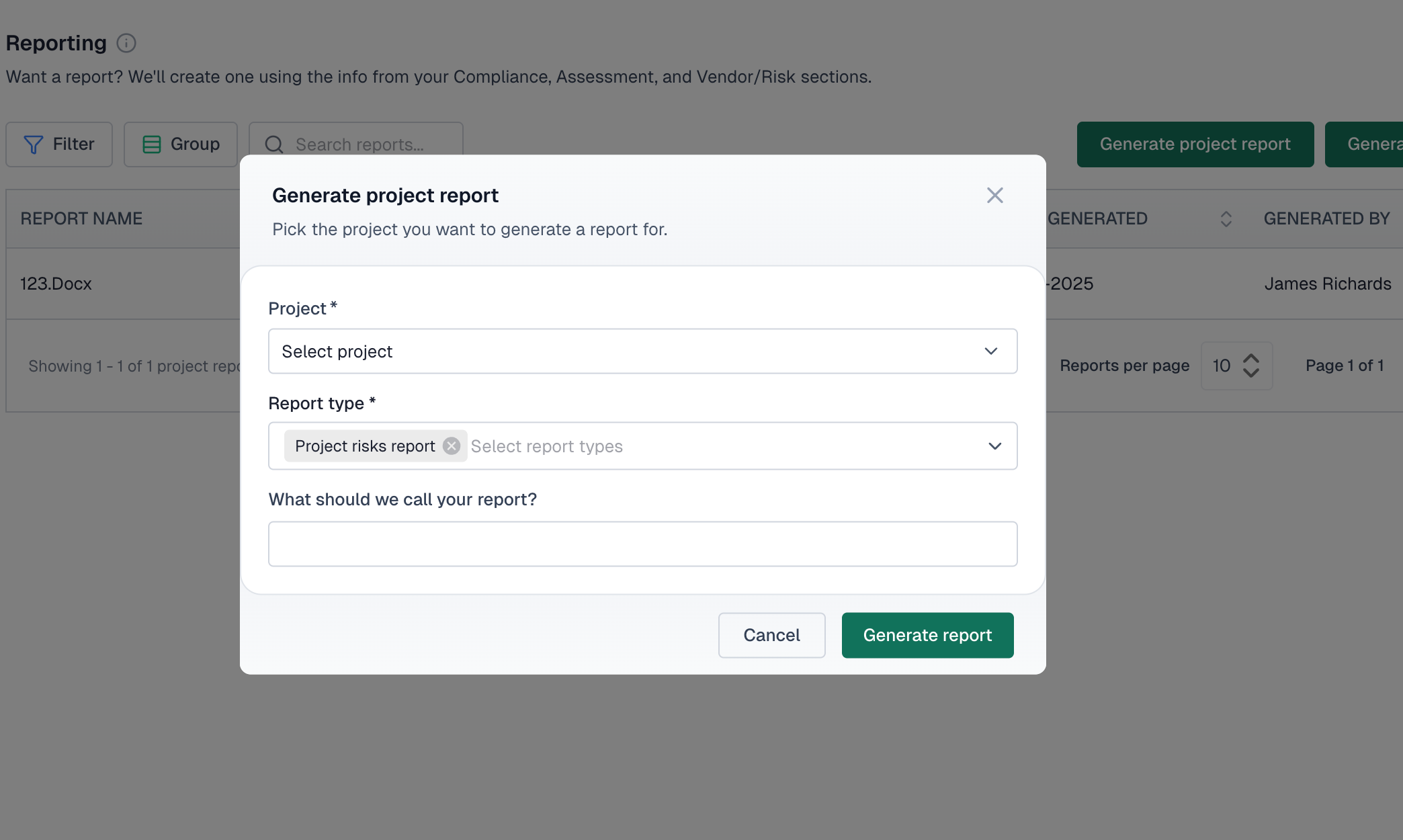
To generate a report for a specific use case:
- Go to the Reporting section from the sidebar under Assurance
- Click "Generate report" and choose "Use case report" from the dropdown menu
- Select the use case from the dropdown in the modal
- Choose one or more report types (you can select multiple)
- Optionally enter a custom name for the report
- Click "Generate report"
- The report downloads automatically and is saved to the reports list
Generating an organization report
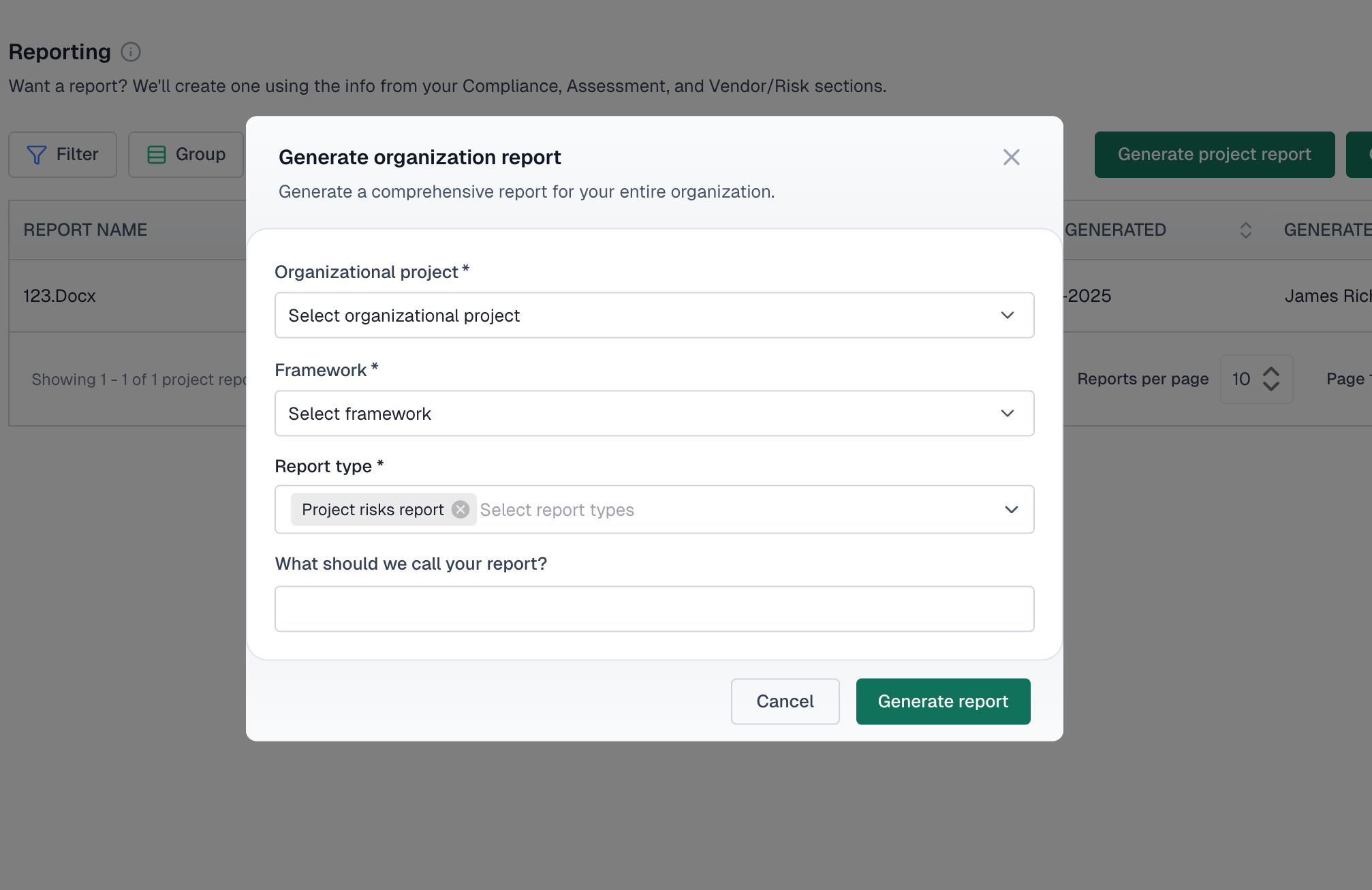
To generate an organization-wide report:
- Go to the Reporting section
- Click "Generate report" and choose "Organization report" from the dropdown menu
- Select the organization from the dropdown in the modal
- Select the framework for the report
- Choose the report types to include
- Optionally enter a custom report name
- Click "Generate report"
Managing generated reports
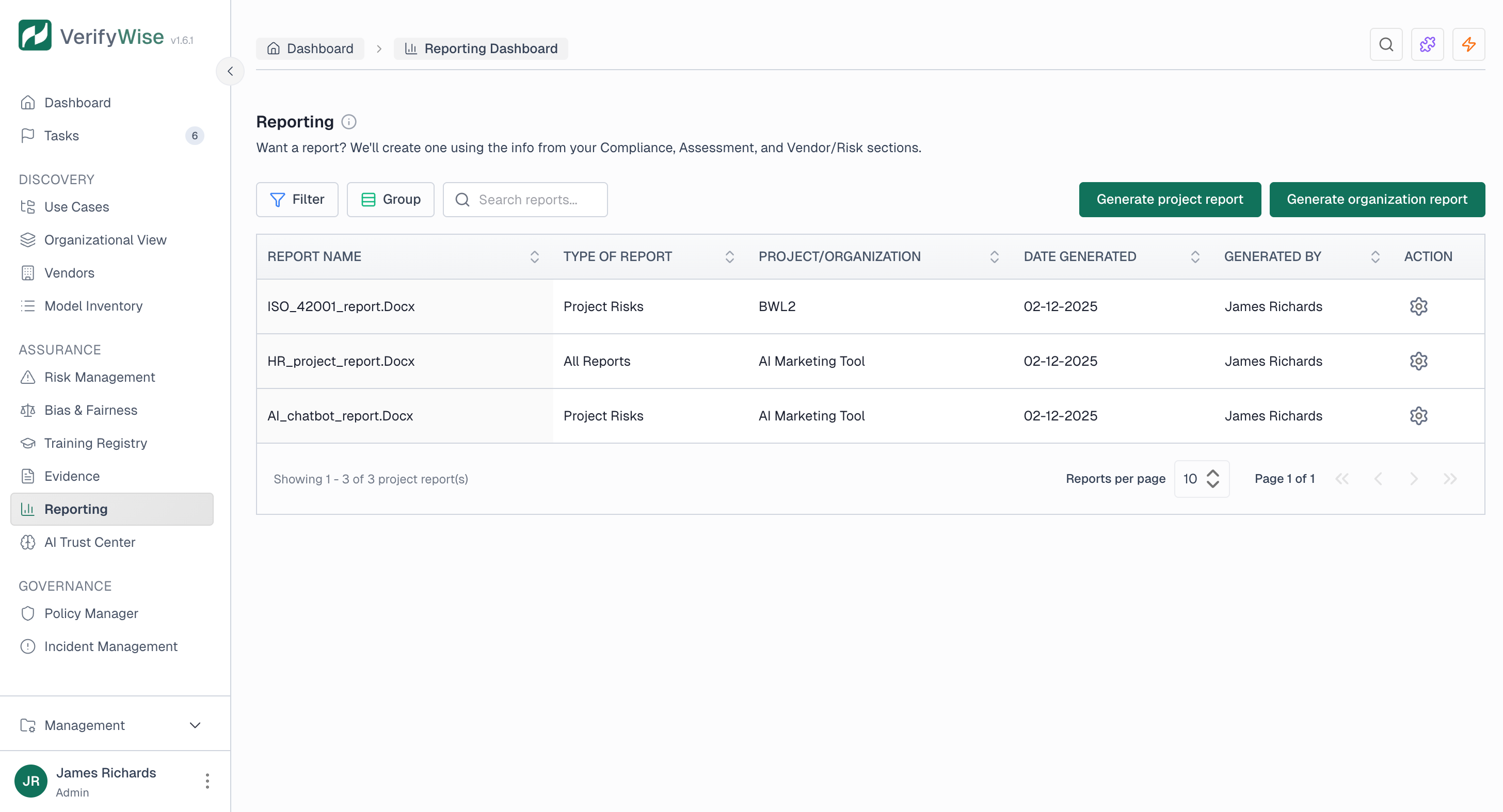
All generated reports are saved in the reports list. The list shows:
- Report name: The name you gave the report or an auto-generated name
- Type of report: Which report type was generated
- Use case/Organization: The use case or organization the report covers
- Date generated: When the report was created
- Generated by: The user who created the report
Finding reports
Use the filtering and organization tools to find specific reports:
- Filter: Filter by report name, type, use case, generated by or upload date
- Group by: Group reports by type, use case or who generated them
- Search: Search for reports by name
Deleting reports
To delete a report, use the delete action in the Actions column. Deleted reports can't be recovered, so make sure you've downloaded a copy if you need one.
Best practices
- Name reports clearly: Use descriptive names that include the date or purpose, like "Q4 2024 Compliance Report" or "Annual Board Summary"
- Generate regularly: Create reports on a regular schedule (monthly or quarterly) to track progress over time
- Keep archives: Hold on to historical reports to show governance evolution
- Use combined reports: For full documentation, the "All reports combined" option creates a single reference document
- Verify before sharing: Review generated reports before sharing with external stakeholders
Frequently asked questions
What format are reports generated in?
Reports are generated as downloadable files that open in standard document viewers. They're designed to be easy to share and print.
Why are the generate buttons disabled?
The generate report buttons are disabled if no use cases exist yet. Create a use case first, then come back to the reporting section.
I received an access denied error when generating a report. What should I do?
This means you may not have permission to generate reports for the selected use case. Check with your administrator to verify your role and permissions.
What data is included in reports?
Reports include current data from the platform at the time you generate them. They pull in risks, compliance status, policies, training records and other governance data relevant to the report type you chose.
Can I schedule automatic report generation?
Reports are generated on demand right now. For regular reporting needs, set a reminder to generate reports on your preferred schedule. They're all saved in the list for later reference.