API access
Create and manage API keys for programmatic access.
Overview
VerifyWise offers API access so you can integrate with external applications, scripts and automation workflows. API keys let you authenticate requests without an interactive login.
Use API keys to build custom integrations, automate data sync or connect VerifyWise with your existing tools.
Accessing API keys
To manage API keys:
- Go to Settings from the bottom of the sidebar
- Select the API keys tab
- View your existing keys or create new ones
Creating an API key
To create a new API key:
- Click "Create new key" or "Create API key"
- Enter a descriptive name for the key (e.g., "Production API key", "CI/CD pipeline")
- Click Create
- Copy the generated key right away
- Click "I copied the key" to close the dialog
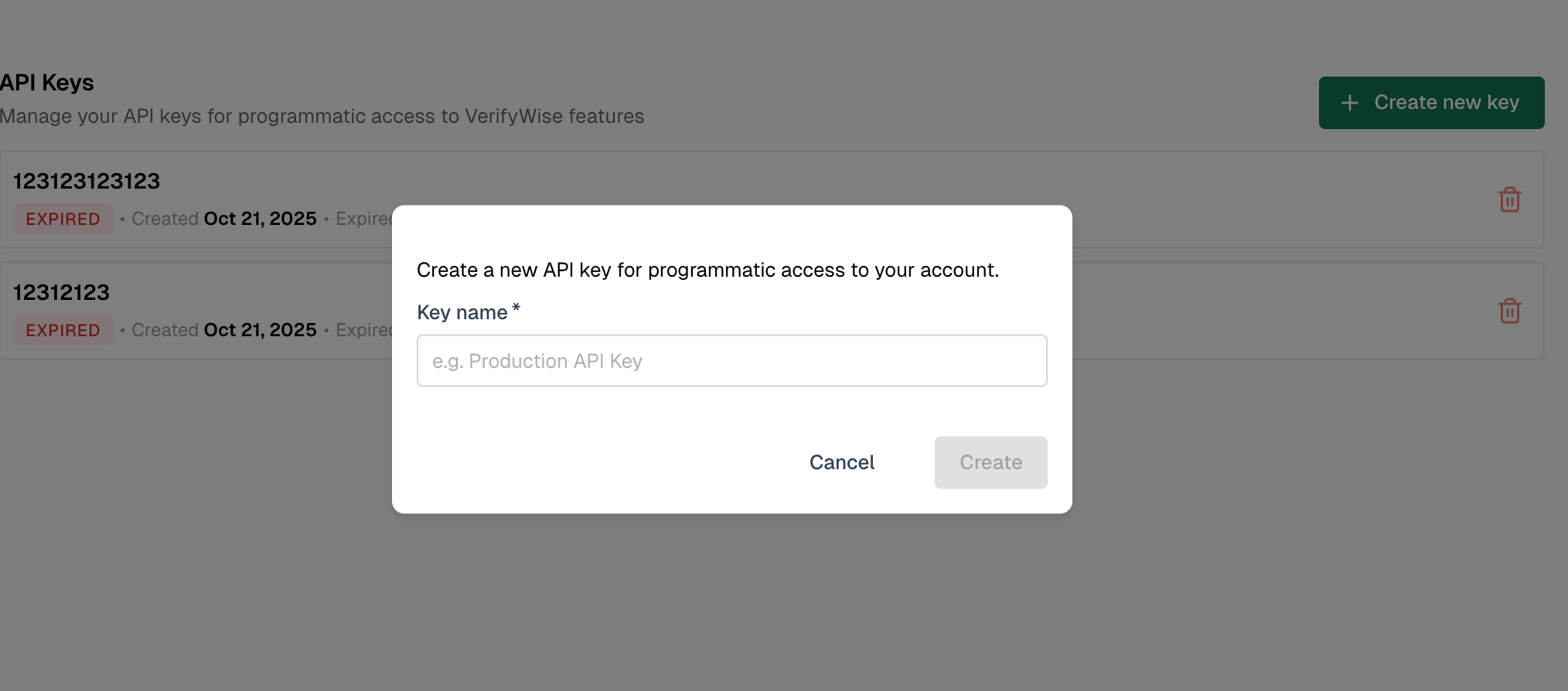
Key naming best practices
Use descriptive names that make the key's purpose clear:
- Environment-based: Production API key, Staging API key, Development key
- Purpose-based: Model sync key, Reporting automation, CI/CD integration
- Application-based: Data pipeline key, Dashboard integration
Key names must be between 3 and 50 characters. Each name has to be unique within your organization.
Viewing API keys
The API keys list shows the following for each key:
- Name: The descriptive name you gave the key
- Status: Whether the key is Active, Expired or Revoked
- Created: When the key was created
- Expires: When the key will expire
- Last used: When the key last authenticated a request, or Never if it has not been used yet
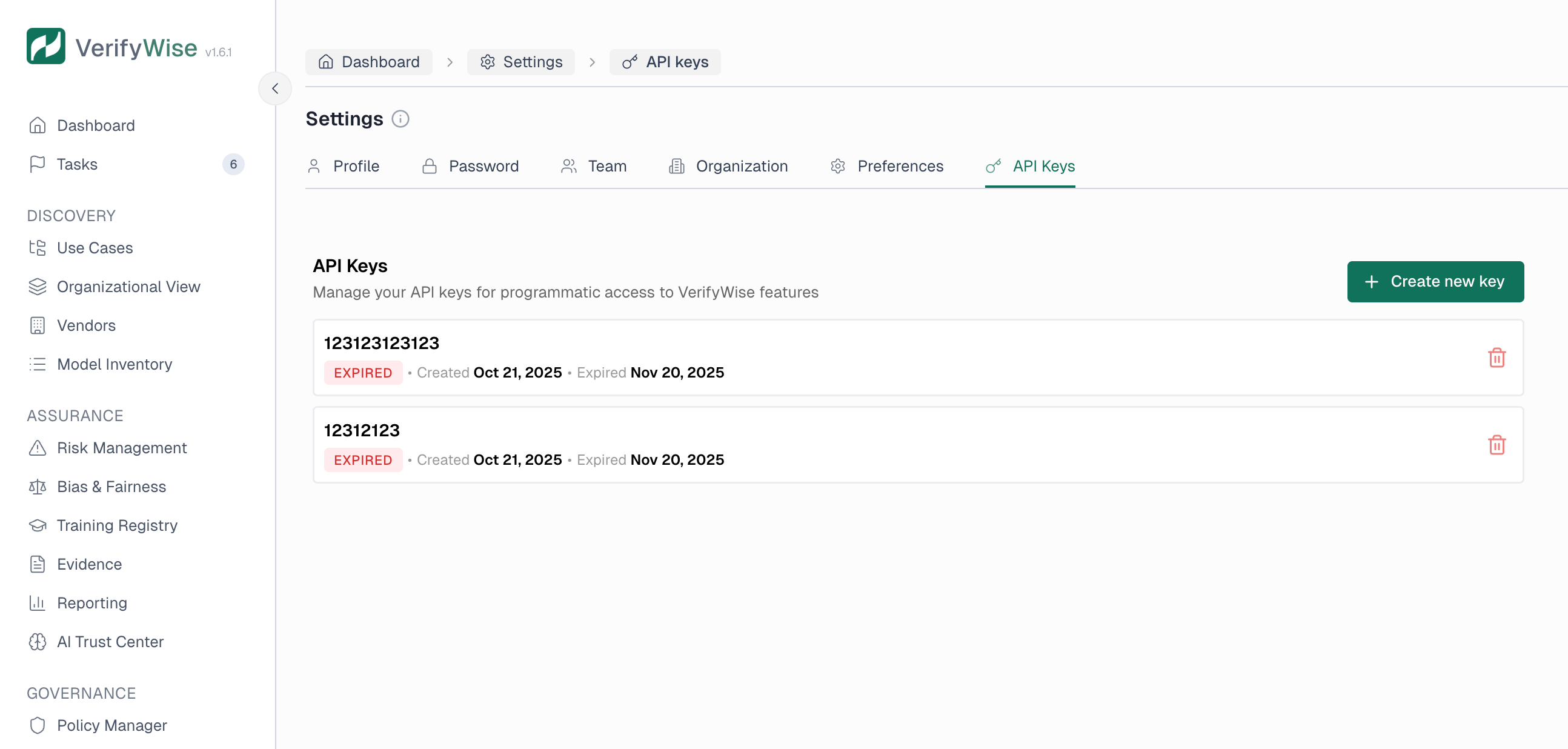
Active keys have a green badge. Expired keys can no longer be used. Revoked keys were turned off manually and are kept in the list for your records.
Revoking API keys
Revoking a key turns it off straight away while keeping it in the list, marked as revoked, for your records. This is the best way to retire a key you no longer trust.
- Find the key in the API keys list
- Click the revoke icon for that key
- Confirm when prompted
Deleting API keys
Deleting removes a key from the list entirely. If you want to keep a record that the key existed, revoke it instead. To delete a key:
- Find the key in the API keys list
- Click the delete icon for that key
- Confirm the deletion when prompted
Using API keys
Include your API key in the request headers to authenticate:
- Header name: Authorization
- Header value: Bearer YOUR_API_KEY
For the base URL, the response shape, the full list of endpoints and the current limits, see the Platform REST API article in the developer guide. You can also browse the live endpoint reference in your browser at /api/docs.
Security best practices
- Never share keys: Keep API keys confidential. Don't share them in emails, chat or version control.
- Use environment variables: Store keys in environment variables rather than hard-coding them.
- Rotate regularly: Create new keys periodically and revoke old ones to limit exposure.
- Use separate keys: Create different keys for different environments and purposes.
- Act on compromises: If you suspect a key has been compromised, revoke it right away and create a new one.
- Limit access: Only admins should manage API keys.
Key expiration
API keys have an expiration date set at creation. Keep an eye on your keys and create new ones before existing keys expire to avoid interruptions.
When a key expires:
- The key status changes to Expired
- API requests using the key get rejected
- You'll need to create a new key and update your applications
Troubleshooting
Receiving 401 Unauthorized errors
- Check that the API key is correct and complete
- Verify the key hasn't expired
- Make sure the Authorization header is formatted properly
- Confirm the key hasn't been revoked or deleted
Lost API key
If you lose an API key, there's no way to retrieve it. Create a new key, update your applications to use it and delete the old one.
Frequently asked questions
How many API keys can I create?
Each organization can have up to 10 API keys at a time. If you hit the maximum, delete unused keys before creating new ones.
Why am I getting a duplicate name error?
Each API key needs a unique name within your organization. If a key with that name already exists, pick a different name or delete the existing key first.
What permissions does an API key have?
A key carries the role of the Admin who created it and is scoped to your organization, so it can only read and write your own organization's data. The endpoints and operations available are listed in the Platform REST API article and the live reference at /api/docs.
Are there rate limits?
Some route groups, such as login and file uploads, are rate-limited, but the main data (CRUD) endpoints currently are not. Keep your request volume reasonable anyway, since limits may be added later. The Platform REST API article covers this in more detail.