Reviewer assignment
Send intake submissions to expert or regular reviewers by risk score, and run second reviews.
Overview
Reviewer assignment sends each scored submission to expert or regular reviewers based on its risk score. Higher-risk submissions go to the people you pick as expert reviewers. A share of regular approvals gets a second look from one of them.
It is off by default. With it off, anyone who can edit intake forms can approve or reject every submission. Only Admins can change the settings. Other roles see them read-only.
Turn on reviewer assignment
- Open the form in Edit mode. If a field's settings are open on the right, close them with the close button at the top. Then open Form settings in the right panel.
- Check Assign reviewers by risk score.
- Choose at least one person under Expert reviewers and at least one under Regular reviewers. Only users whose role can edit intake forms are listed.
- Set Threshold, Close-call margin and Second review share %, or keep the defaults (see below).
- Check the summary line under the settings. It reads like "Scores of 50 or more, prohibited practices and scores less than 10 points from 50 go to expert reviewers."
- Click Save. Pending submissions on the form are assigned with the new settings.
| Setting | What it does | Allowed values | Default |
|---|---|---|---|
| Threshold | The risk score that separates expert review from regular review. | 1 to 99 | 50 |
| Close-call margin | Scores below the threshold by less than this margin also go to expert review. | 0 to 25 | 10 |
| Second review share % | The chance that an approval in regular review, by someone who isn't one of the form's expert reviewers, is picked for a second review. Approvals made before the submission had a review level are never picked. | 0 to 100 | 10 |
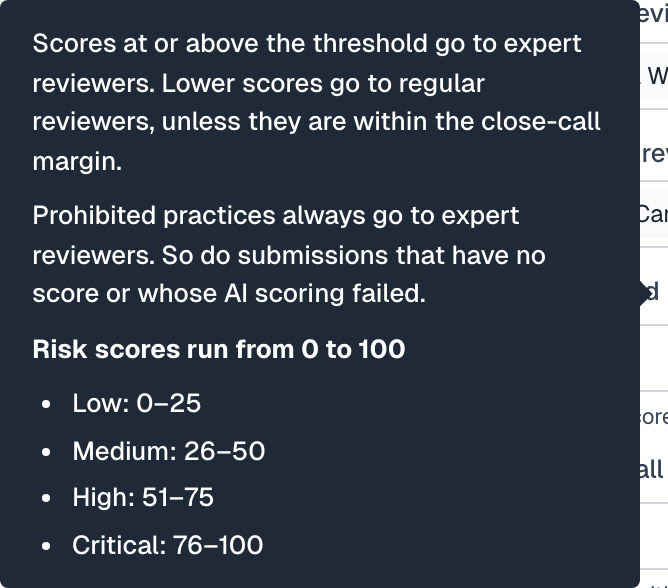
All three take whole numbers. Risk scores run from 0 to 100.
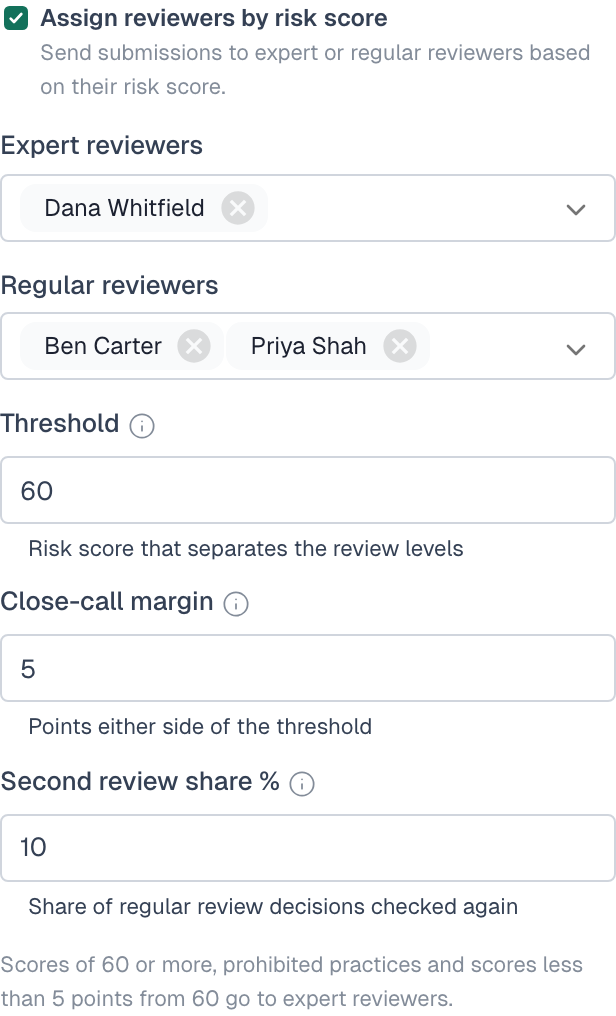
Each of the three numbers has an info icon that explains what the setting does. The threshold and close-call margin icons also show the 0 to 100 risk score scale and the score band for each risk level.
How a submission is assigned
VerifyWise assigns a submission once its scoring has finished. It checks these rules in order and stops at the first one that matches. The reason shown in the review window tells you which rule applied.
| Order | If | Goes to | Reason shown |
|---|---|---|---|
| 1 | The EU AI Act level is Prohibited | Expert review | Prohibited practice |
| 2 | There is no usable score, for example because AI scoring failed | Expert review | No usable score |
| 3 | The score is less than the close-call margin away from the threshold | Expert review | Within N points of the threshold |
| 4 | The score is at or above the threshold | Expert review | Score N, threshold N |
| 5 | None of the above | Regular review | Score N, below N |
With the defaults (threshold 50, margin 10), a score of 41 to 59 is a close call. A score of 60 or more is at or above the threshold. So every score from 41 up goes to expert review. A score of 40 is exactly 10 points away, which is not less than the margin, so it goes to regular review. With a margin of 0 there are no close calls and only the threshold counts.
Review level in the submissions list
- Expert review or Regular review: the level the submission was assigned to.
- Not assigned yet: scoring is still running, so there is no level yet.
- Assignment off: the form doesn't use reviewer assignment.
Use the Review level filter to narrow the list: All review levels, Expert, Regular, Not assigned, Assigned to me or Second review. Assigned to me shows the submissions where you are on the form's expert or regular reviewer list, plus the second reviews you can do as an expert reviewer. Submissions not assigned yet don't appear there, and neither does anything for an Admin who isn't on either list.
Who can approve or reject
| Person | Expert review | Regular review |
|---|---|---|
| Admin | Yes | Yes |
| Expert reviewer on this form | Yes | Yes |
| Regular reviewer on this form | No | Yes |
| Anyone else | No | No |
People who can't decide still see the submission, with a line naming who can, for example "Only Dana Lee, Sam Ortiz can decide this submission."
Moving a submission to expert review
A submission in regular review can move to expert review in three ways. A reviewer can't move it back. Only saving changed settings can, as described under Changing the settings later.
- Request expert review: A reviewer on the form or an Admin clicks Request expert review in the review window and gives a reason of up to 1000 characters. The reason is shown with the submission.
- A higher score band: If a reviewer raises the score band and the lowest score of the new band (Medium 26, High 51, Critical 76) would go to expert review under the rules above, the submission moves there. The reason shown is "Band raised by a reviewer".
- At the moment of decision: A regular reviewer can't approve while setting a Prohibited level, or a band that would send the submission to expert review. An expert reviewer or Admin has to decide it.
Walkthrough: request expert review
- Open a pending submission that shows Regular review.
- Click Request expert review.
- In Reason, explain why it needs an expert reviewer.
- Click Request expert review in the dialog. The submission now shows Expert review with "Expert review requested:" and your reason. It stays in expert review even if the settings change later.
Second review
When someone who isn't one of the form's expert reviewers approves a submission in regular review, VerifyWise may pick it for a second review. The chance is the Second review share %. Approvals in expert review are never picked. The approval stands either way. A second review doesn't undo it or change the use case or model it created.
Walkthrough: do a second review
- Open the submission from the email you received, or choose Second review in the Review level filter. Only expert reviewers of the form and Admins can do second reviews, and never on their own approval.
- The review window shows a Second review panel. Check the answers and the decision that was made.
- Click Agree if the approval was right. A note is optional.
- Or click Missed something and write a note of up to 2000 characters saying what was missed. The note is required.
- For a miss, do the follow-up work, then click Mark resolved and write what was done. This note is also required.
Changing the settings later
- When you save changed settings with reviewer assignment on, every pending submission on the form is assigned again. Submissions sent to expert review by a request stay there. Submissions moved by a raised band stay there if the new settings would put them in regular review.
- Approved and rejected submissions keep the level they were decided at.
- If a reviewer leaves your organization or loses the right to edit intake forms, they stay in the list as Former user until you remove them. A list you change must keep at least one person who can review. Admins can always decide.
Check the setup
Select Logic at the top of the builder to see the reviewer assignment rules in plain words, with the names of the expert and regular reviewers. The Oversight tab on the intake forms page shows how submissions split between the review levels, how long decisions take and which second reviews are still open.