Organization settings
Set your organization name and branding.
Overview
Organization settings let you configure your organization's identity and branding in VerifyWise. These settings control how your organization appears across the platform and in generated reports.
Accessing organization settings
To access organization settings:
- Click on Settings in the sidebar footer
- Select the Organization tab
Organization name
The organization name identifies your company or team across VerifyWise. It shows up in reports, documentation and throughout the platform.
To update your organization name:
- Enter the new name in the Organization name field
- Click Save to apply the change
- Name requirements: The organization name must be between 2 and 50 characters
- Updates apply right away: The new name appears across the platform once saved
- Reports use current name: Generated reports show the organization name at the time of generation
Organization logo
Upload your organization's logo to brand your VerifyWise instance. The logo appears in various places across the platform.
Uploading a logo
To upload an organization logo:
- Click the Update button below the logo placeholder
- Select an image file from your computer
- The logo uploads and displays automatically
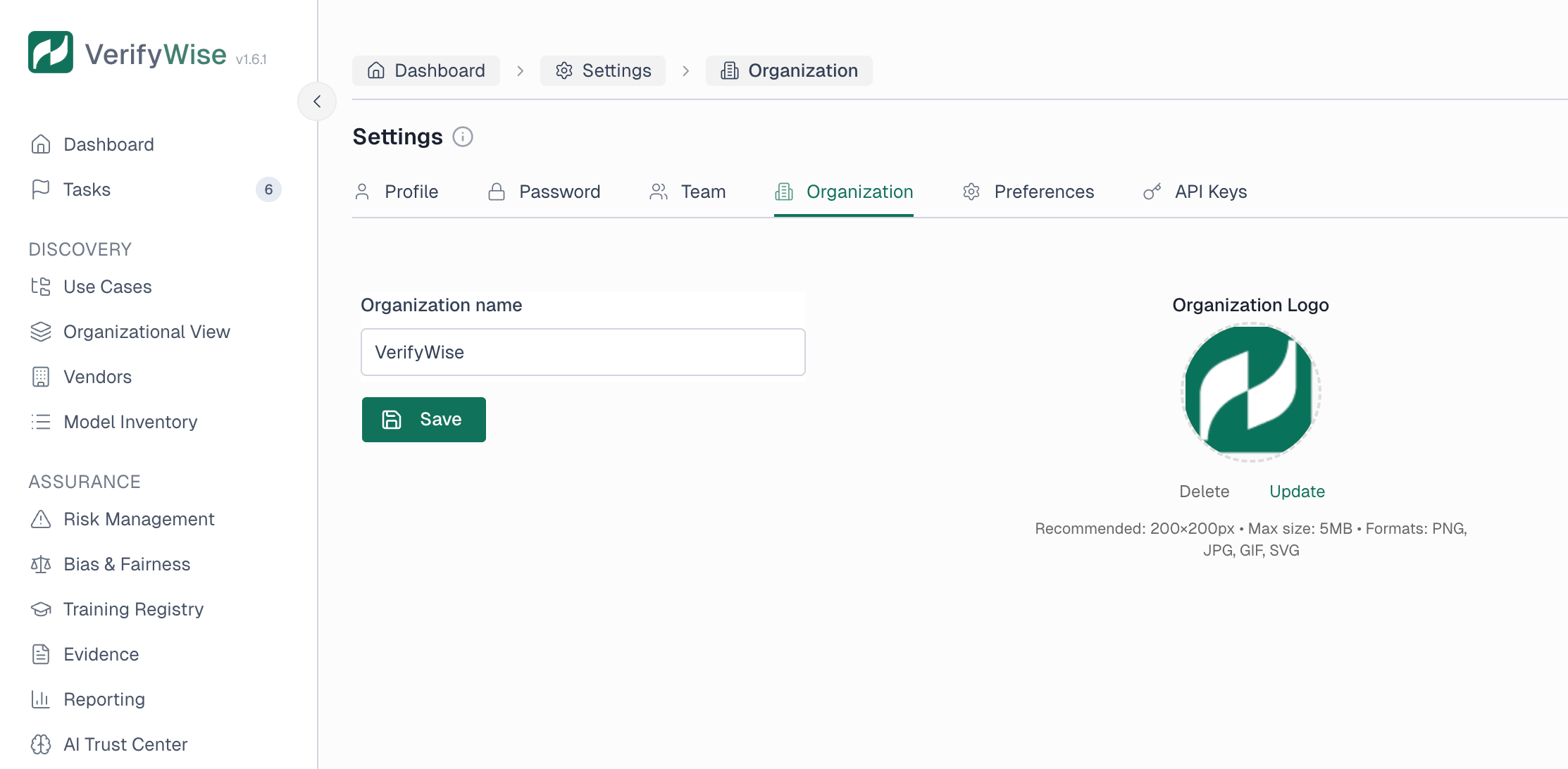
Logo requirements:
- Recommended size: 200 x 200 pixels for best display quality
- Maximum file size: 5MB
- Supported formats: PNG, JPG, JPEG, GIF and SVG
Removing the logo
To remove your organization logo:
- Click the Delete button below the current logo
- Confirm the removal when prompted
- The logo is removed and a placeholder is shown
First-time setup
When you first log in, you may be asked to set your organization name if it hasn't been configured yet. This makes sure your governance docs and reports show the right organization identifier from the start.
Frequently asked questions
Can I change the organization name after initial setup?
Yes. You can update the organization name at any time from the Organization tab in Settings. The change takes effect right away across the platform.
Does the logo appear in generated reports?
The logo is used for branding within the platform. Whether it appears in reports depends on the specific report type.
Data retention
The Data retention tab in Settings shows how long each kind of record is kept, whether it is deleted automatically, and when the last cleanup ran. Only Admins can open it and change a period.
- Audit records: Includes the audit ledger, event log, change history, AI Advisor actions and file access logs. They are kept indefinitely until you pick a period of 1, 2, 3, 5, 7 or 10 years. A daily cleanup then removes older records.
- AI Gateway logs: Guardrail and spend logs have their own periods. Turn on Delete automatically to remove old logs every day. It is off by default, and VerifyWise asks you to confirm before turning it on or shortening a period while it is on.
- Evidence files: The default retention policy for new files is set here; each file can set its own. Evidence files are archived, not deleted, when their retention ends: they are marked as expired and stay available under Expired files in the file manager.
- Agent Control logs: Tool-call logs and decided approvals use the deployment default period until you set your own. Turn off Use the deployment default and enter a whole number of days, from the deployment's minimum (7 by default) up to 3650. A daily cleanup removes older records, and VerifyWise asks you to confirm before shortening the period.
- Other records: Model risk metrics and Shadow AI data can be changed here too. Server logs are set by your deployment and shown read only.
Who can modify organization settings?
Users with the Admin role can modify organization settings. Editors, Reviewers and Auditors can view them but can't make changes. If you need to update settings but don't have permission, contact your organization's administrator.