Conducting risk assessments
Learn how to identify and evaluate risks in your AI projects.
Overview
Risk assessment is about figuring out what could go wrong with your AI systems, how likely it is to happen and how bad the consequences would be. It helps you decide which risks need immediate attention and which ones you can monitor over time.
AI systems bring risks that traditional software doesn't, like biased decision-making or unexpected model behaviors. Identifying these risks early lets you put controls in place before problems happen rather than reacting after the fact.
Why assess AI risks?
AI systems present challenges that make formal risk assessment worth the effort:
- Regulatory compliance: Regulations like the EU AI Act require documented risk assessments for AI systems
- Stakeholder protection: Spotting risks helps protect users, customers and affected communities
- Business continuity: Knowing your risks prevents costly failures and reputation damage
- Informed decision-making: Risk data helps you prioritize resources and mitigation efforts
- Accountability: Documented assessments show auditors and regulators you've done your homework
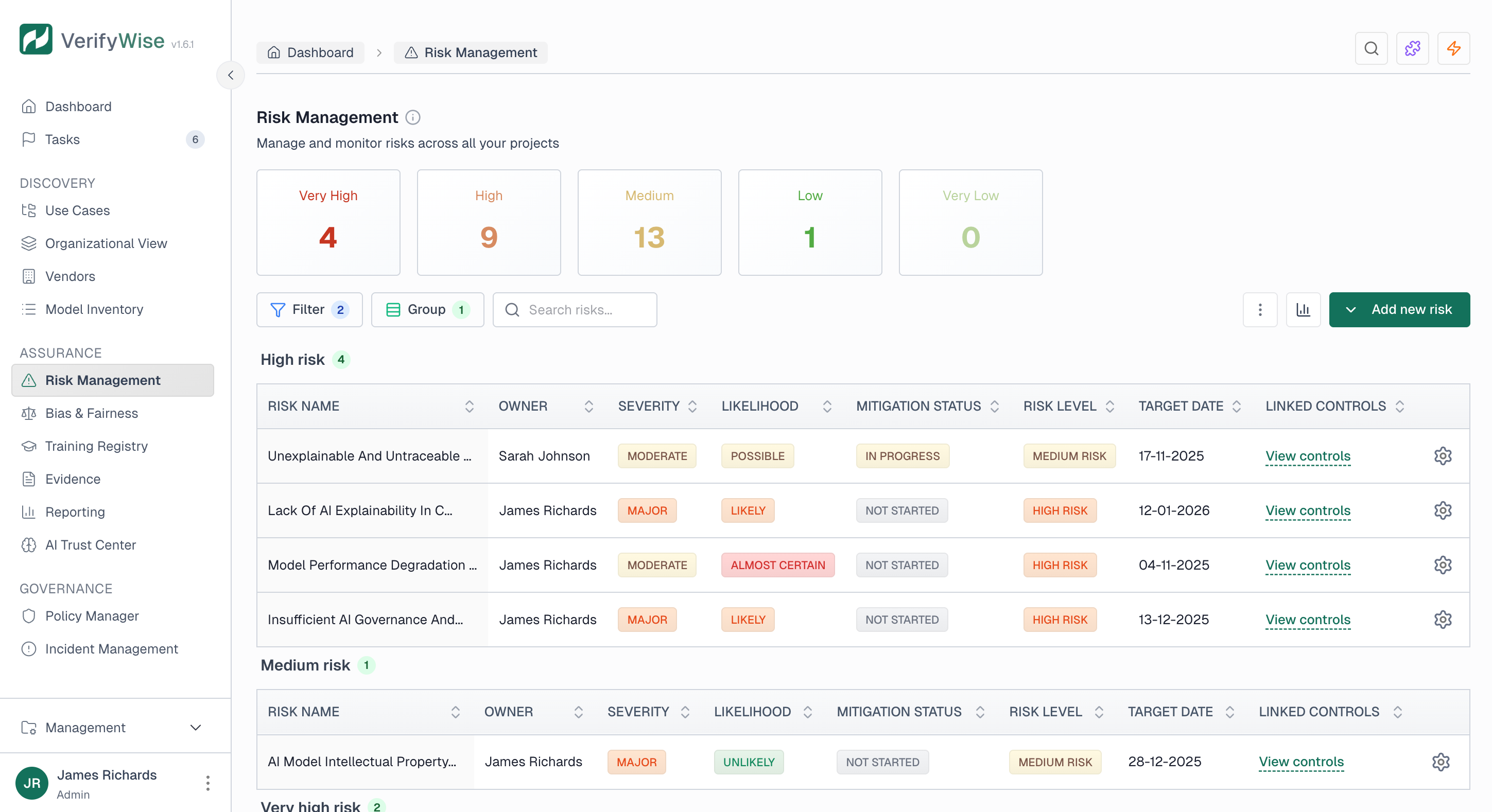
Creating a risk
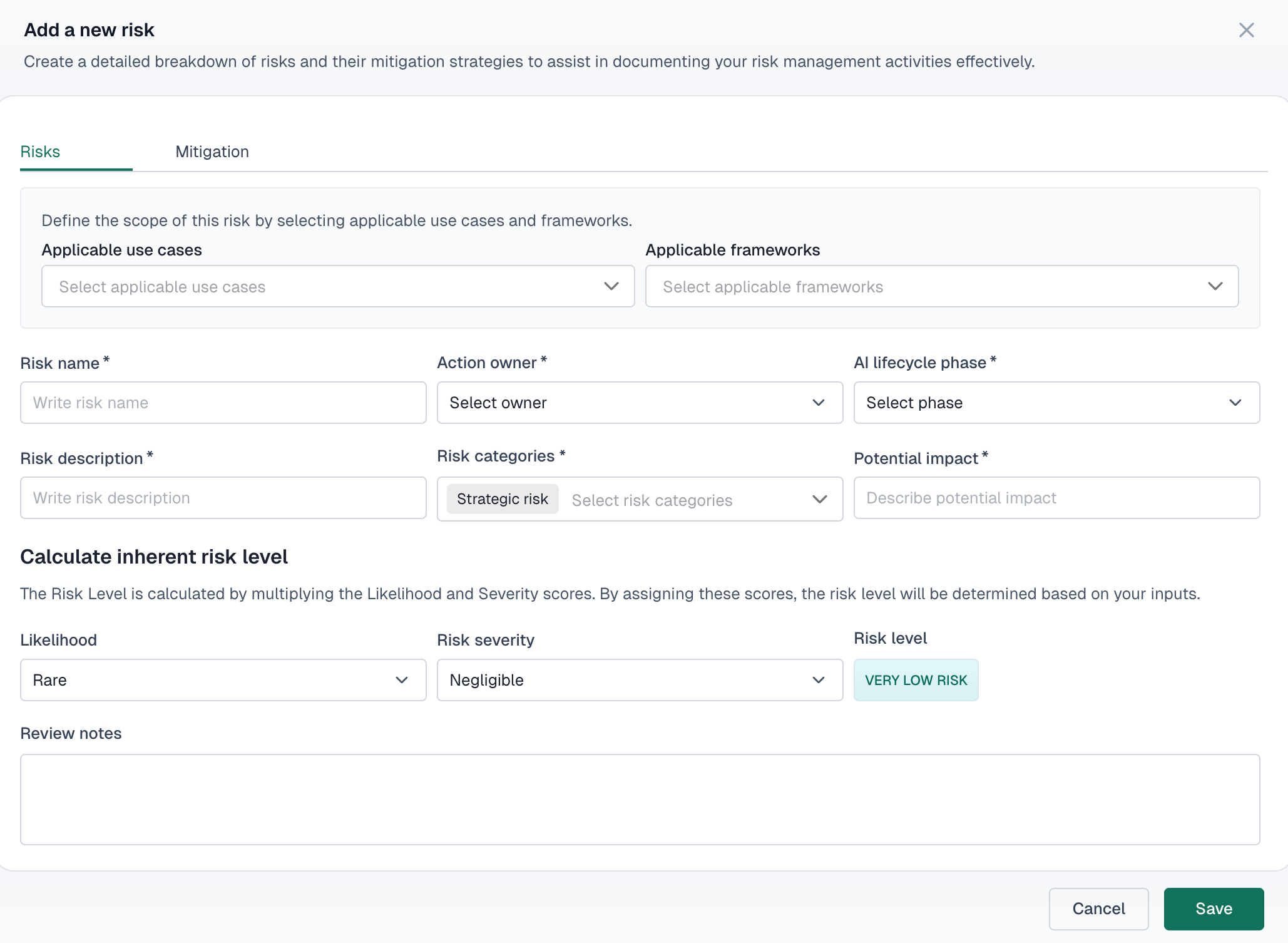
To create a new risk, head to the risk management section and fill in these details:
- Risk name: A clear, descriptive name for the risk
- Action owner: The person responsible for managing this risk
- Risk description: Detailed explanation of the risk and its potential consequences
- AI lifecycle phase: When in the AI lifecycle this risk applies
- Risk category: Classification of the risk type
AI lifecycle phases
VerifyWise tracks risks across the full AI system lifecycle:
Problem definition and planning
Initial project scoping, requirements gathering, and feasibility assessment.
Data collection and processing
Data sourcing, cleaning, labeling, and preparation activities.
Model development and training
Algorithm selection, model architecture, and training processes.
Model validation and testing
Performance evaluation, bias testing, and quality assurance.
Deployment and integration
Production rollout and system integration activities.
Monitoring and maintenance
Ongoing performance monitoring and model updates.
Risk analysis
Each risk gets analyzed using likelihood and severity. VerifyWise calculates the inherent risk level automatically from these inputs, on the server, every time you save a risk.
Likelihood assessment
Rate how probable the risk is to occur:
| Likelihood | Description |
|---|---|
| Rare | Highly unlikely to occur |
| Unlikely | Not expected but possible |
| Possible | May occur at some point |
| Likely | Expected to occur |
| Almost Certain | Will almost definitely occur |
Severity assessment
Rate the potential impact if the risk materializes:
| Severity | Description |
|---|---|
| Negligible | Minimal impact, easily addressed |
| Minor | Limited impact, manageable consequences |
| Moderate | Noticeable impact requiring attention |
| Major | Significant impact on operations or stakeholders |
| Catastrophic | Severe impact with long-term consequences |
Calculated risk levels
Each rating counts from 1 to 5 (Rare to Almost certain, Negligible to Catastrophic). VerifyWise adds the likelihood once and the severity three times: score = likelihood + 3 × severity. The score decides the level:
| Score | Risk level | Recommended action |
|---|---|---|
| 4 | No risk | No action required |
| 5 to 8 | Low risk | Standard monitoring and review |
| 9 to 12 | Medium risk | Active management required |
| 13 to 16 | High risk | Priority attention needed |
| 17 to 20 | Very high risk | Immediate action required |
The same formula applies everywhere a level is calculated: the risk form, imports, the AI advisor, intake forms and AI suggestions. After mitigation, the residual level uses the same formula on the mitigated likelihood and severity.
Which level a risk shows
A risk can have two levels. The inherent level is calculated from likelihood and severity. The current level is one you pick by hand in the Mitigation tab. VerifyWise shows the current level when you have set one and the inherent level otherwise. This level drives the chip in the risks table, sorting, the summary cards, filters, exports, reports, the dashboard and the compliance score.
- Table chip: Hover over the chip to see the inherent level
- Heat map: The heat map plots likelihood against severity, so it always shows the inherent level. Its tab reads "Heat map (inherent level)"
Linking risks to use cases and frameworks
Risks can be associated with:
- Use cases: Link risks to specific AI use cases in your portfolio
- Frameworks: Associate risks with compliance frameworks like EU AI Act or ISO 42001
- Assessments: Map risks to specific assessment questions and controls
Who can see a risk
Admins see every risk in the organization. Other users see a risk when any of these applies:
- The risk is not archived and not linked to a use case. A risk linked only to frameworks counts as not linked.
- The risk is linked to a use case you own, are a team member of or reach through a group.
- You are the risk's action owner or its approver.
When the last use case link of an active risk is removed, everyone in the organization can see the risk. This also happens when that use case is deleted. An archived risk with no use case link stays private: only Admins, its action owner and its approver can see it. Before you delete a use case, the delete dialog tells you how many of its risks are linked to no other use case and lets you archive them or keep them visible to everyone. Archiving is selected by default, and the risks are archived and the use case deleted together, so if something goes wrong nothing changes. Deleting a use case through the AI advisor or the Jira Assets integration archives these risks too, and the AI advisor deletes a use case only for a user whose role can archive risks. To keep such a risk active and private instead, cancel and link it to another use case first. If an archived risk with no use case link is ever restored, everyone in the organization can see it again.
A risk you cannot see is left out of the risk register, search results, change history, linked risks, policy links, the vendor exposure report and the AI advisor's answers. Opening it directly behaves as if the risk does not exist.
Being assigned a task on a use case, or approving its workflow, lets you open the use case. It does not show you its risks. On such a use case you see only the risks you own or approve.
A risk you can see names only the use cases you can access, in the risk register, on the risk itself and in the link pickers. To link a risk to a use case, you need access to that use case. The Applicable use cases field lists only the use cases you can access. When you edit a risk that is also linked to a use case you cannot access, that link is hidden from you. Saving the risk keeps it.
Archiving, bulk edits and export
- Archiving: Archiving a risk, one at a time, in bulk or through the AI advisor, removes it from the risk register, from reports and from every policy it was linked to. Its change history keeps a deletion entry. Archived risks no longer count towards use case totals, framework control panels or post-market monitoring cycle snapshots
- Bulk owner and category: Setting the owner or category on several risks records change history on each changed risk. A new owner gets one notification listing the risks assigned to them, and automations run once for the whole bulk action, with a summary of the changes. Risks that already have the value are skipped
- Removing a use case or framework: When you remove a use case or framework from a risk, the risk's links to controls in every framework of that use case are removed too
- Export: Export includes the risks that match your current filters and search. If nothing matches, there is nothing to export and the export button is disabled
Risk tracking
VerifyWise gives you a few ways to monitor your risks:
- View all risks across your organization
- Filter risks by use case
- Filter risks by compliance framework
- Track risk status changes over time
Additional risk fields
Each risk record can include:
- Impact description for detailed consequence analysis
- Assessment mapping to link to specific assessment items
- Controls mapping to associate with governance controls
- Review notes for ongoing observations
- Date of assessment for tracking when the risk was evaluated
Related articles
Quantitative risk assessment (FAIR)
Quantify AI risks in financial terms with ALE calculations and industry benchmarks
Risk mitigation strategies
Learn how to implement controls for identified risks
Vendor risk assessment
Assess risks from third-party AI vendors
EU AI Act compliance
Understand regulatory risk requirements