Managing the AI apps inventory
Track the AI applications your teams use, with owners, approvals, policies, and risk.
Overview
The AI apps inventory is where you track the AI applications your teams use, whether you add them yourself or promote them from shadow AI monitoring. Each app records who owns it, which vendor provides it, how it was found and where it sits in your approval process.
Each app also links to the models it runs on, the policies that apply to it and the data types it can access, plus a risk score you set. That gives you one record per app to work from.
Accessing the AI apps inventory
Open AI apps from the sidebar. You get a table of every app, with a search box, a status filter and a New AI app button. Click a row to edit an app, or use the actions on each row to edit it, open the detail page or delete it.
Adding an AI app
Select New AI app and complete the form. Only the name is required; the other fields can be filled in now or later.
- Name: The name of the application, for example "ChatGPT Enterprise". This must be unique within your organization.
- Description: What the app is used for.
- Vendor: The vendor that provides the app, selected from your vendor records.
- Owner: The person responsible for the app, selected from your users.
- Status: Where the app sits in your approval process: draft, under review, approved, restricted, or banned.
- Discovered source: How the app was found: manual, shadow AI, employee report, SSO, proxy, or firewall.
- Required training: Any training a user must complete before using the app.
App statuses
The status tracks where an app is in your governance process. You can change it from the form or from the detail page.
- Draft: The app has been added but not yet reviewed.
- Under review: The app is being assessed for approval.
- Approved: The app is cleared for use.
- Restricted: The app may be used only under specific conditions.
- Banned: The app must not be used.
Lifecycle: in review, planned, live, retired
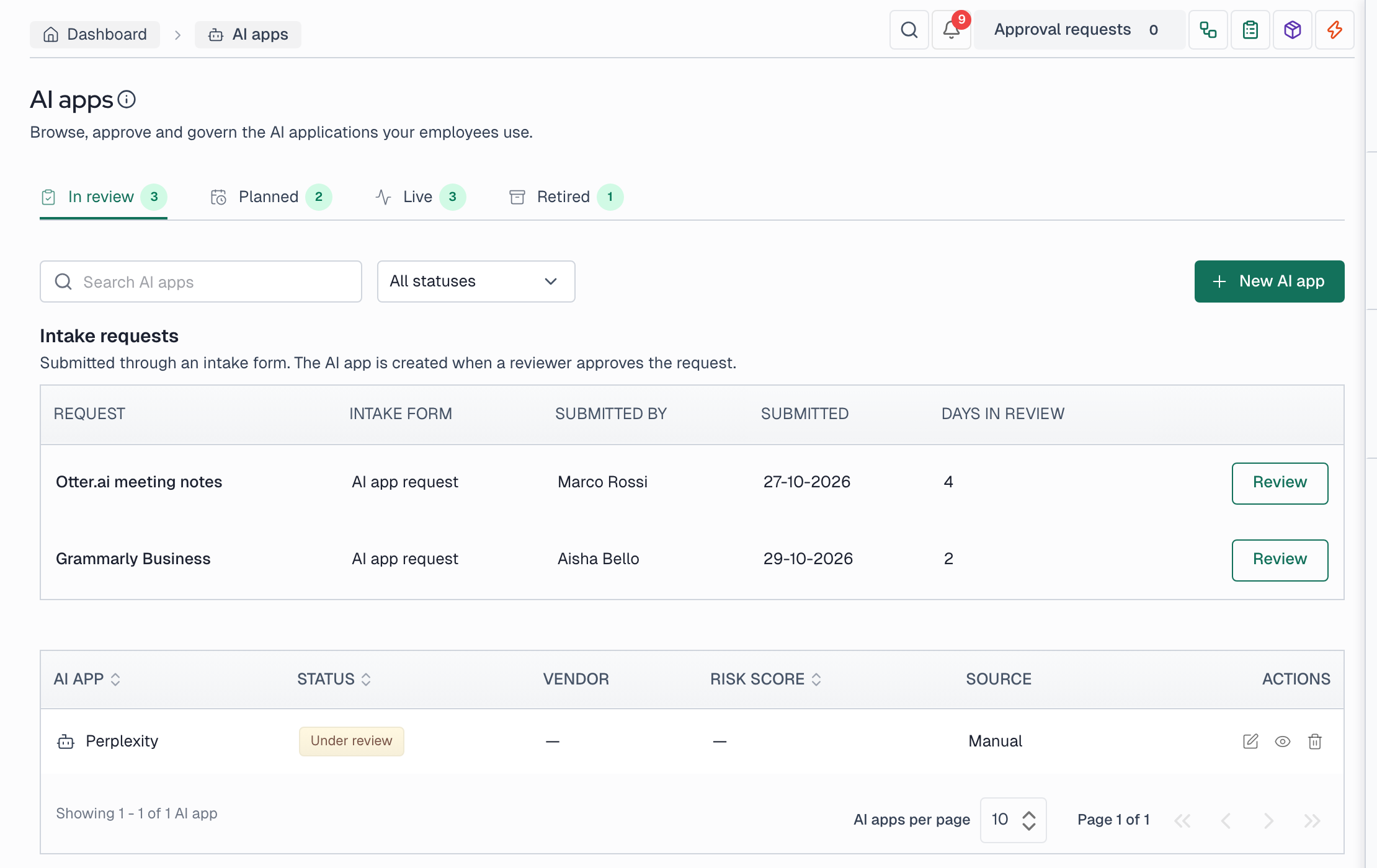
Next to its status, every app has a lifecycle stage. The AI apps page splits the inventory into four tabs with counts: In review, Planned, Live and Retired. The status says whether an app may be used. The lifecycle says whether it is in use.
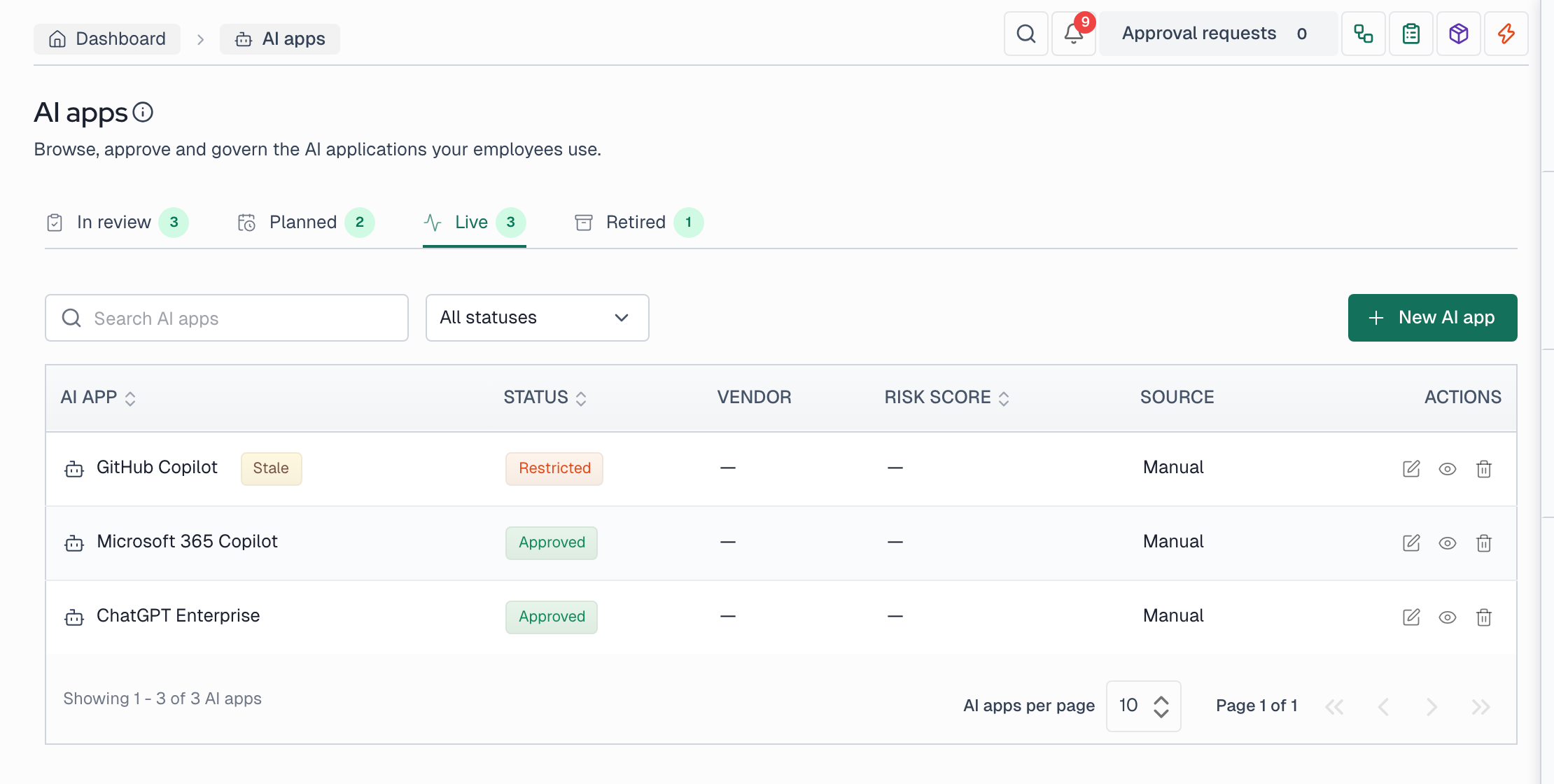
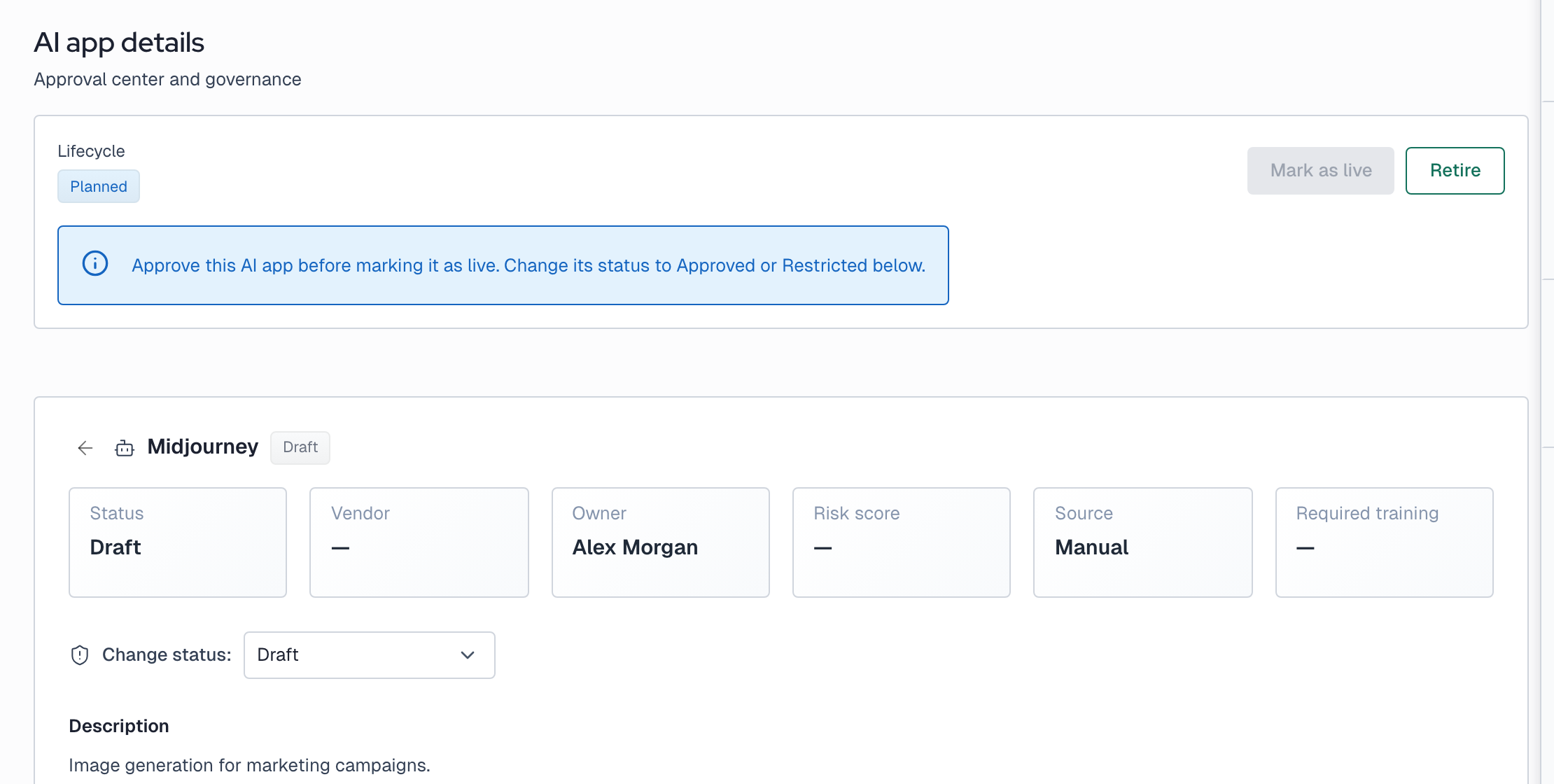
On the app detail page, choose Mark as live and pick the go-live date (today or earlier). Choose Confirm still live on a live app. Retire works on planned and live apps, so an app that never launches can be retired too. Only an app with status Approved or Restricted can be marked as live, so approve a Draft app first. Setting a live app back to Draft returns it to Planned. Admins, Editors and the app owner can change the lifecycle. Auditors cannot.
Live apps get the same still-live check as use cases. Admins set the interval under Settings, Organization, Still-live check (30, 90 or 180 days, 90 by default). When nobody confirms a live app within it, the app is marked Stale. Its owner gets an email asking them to confirm it or retire it, once per interval.
Some status changes move the stage too. Setting a planned app to Under review moves it to In review. Leaving Under review brings it back to Planned. Banning an app retires it and stops its still-live checks. Approved and Restricted don't mark an app as live, so mark the apps in use as live yourself. Apps that existed before the lifecycle were placed by the same rules.
Employees can also request an app through an intake form of type AI app. Requests waiting for a decision are listed at the top of the In review tab and included in its count. Review opens the request. Approving it creates the app as Approved and Planned, with the approver as owner. The name, description and departments come from the requester's answers.
The app detail page
Open an app's detail page from the Details action on its row. The page shows summary cards (status, vendor, owner, risk score, discovered source and required training) and four sections for governing the app.
Model dependencies
Link the app to the models it runs on, selected from your model inventory. Use the Linked models field to add or remove models, then select Save dependencies. The linked models appear in the table below with their provider, model, version and status.
Policy mapping
Mark which of your policies apply to the app. Each policy has an Applicable toggle; turn it on for the policies that govern this app and select Save mapping. When the app's name matches a known tool, suggested policies appear in a panel above the table as a starting point.
Risk assessment
Score the app's risk across a set of criteria using the sliders. The page shows both the current saved score and the score calculated from your slider positions. Select Save assessment to store it. The saved score appears on the summary card and in the list.
Data exposure
Record which data types the app can access, such as public data, internal data, confidential data or customer PII. Each new app starts with a default set of data types that you can adjust.
Linked use cases
List the use cases this app serves. Select Add use case, choose one and select Add, or select the X next to a use case to remove the link. You only see the names of use cases you have access to. Any others are shown as a count.
Promoting a shadow AI tool
When shadow AI monitoring finds a tool in use, you can promote it into the AI apps inventory so it becomes a governed app. The promoted app keeps a link back to the shadow AI tool it came from, and its discovered source is recorded as shadow AI.
Importing apps from a spreadsheet
Select Import on the AI apps page, then Download template. Add one app per row, up to 1000 rows. Only the name is required. After you choose the file, the page checks it and shows a preview before it writes anything.
- Existing names: An app whose name is already in your inventory is skipped. Import does not change existing apps.
- Errors: A row with an error blocks the whole file. The preview gives the row number, field and reason.
- Vendors: A vendor name that is not in your records is added as a new vendor with only its name. The preview lists these vendors so you can complete their records later.
- Owners: The owner email must belong to a user in your organization. A blank email leaves the app without an owner.
When the preview shows no errors, select the import button. The apps are created together, so a failed import adds none of them.
Assessing many apps at once
Tick the apps in the table, or use Select all for the apps that match your filters, up to 1000. Select Assess, then pick a questionnaire.
Each selected app gets a pending assessment, assigned to the app's current owner. An app with a pending assessment for that questionnaire keeps the one it has. Users who can edit AI apps can answer for any app, including apps with no owner.
Answering assessments
Select Assessments on the AI apps page. Owners can turn on Assigned to me to see their own apps. Rate each question from 1 to 5, then select Save or Save and next.
To answer many apps in one sitting, choose a questionnaire, select Download worksheet, fill in the ratings in Excel, then select Upload answers. A worksheet holds up to 1000 apps. A row left blank remains pending, so you can finish a worksheet over several uploads. A row with only some answers is an error, and any error stops the whole upload.
Completing an assessment saves the answers and sets the app's risk score. A completed assessment cannot be edited. To change a score, assess the app again. The app's detail page lists its assessments under Risk assessment.
Questionnaires
Select Questionnaires on the assessments page to create or edit one. Each question has a label, an optional description and a weight from 1 to 5. Your organization starts with a default questionnaire built from the 6 manual risk criteria. You can edit the default, but you cannot delete it.
Editing a questionnaire changes its pending assessments. Completed assessments keep the questions they were answered with.
Editing and deleting apps
Click any row, or use the Edit action, to reopen the form and change the app's details. Use the Delete action to remove an app; you are asked to confirm before the app is deleted.