Slack integration
Send governance notifications to your Slack workspace.
Overview
The Slack integration lets VerifyWise send real-time notifications about AI governance activities to your Slack workspace. Your team can stay on top of model updates, risk assessments, compliance changes and more without leaving Slack.
What you can do with Slack integration
- Receive notifications: Get real-time alerts about governance events in Slack channels
- Choose what to send: Pick which notification types go to Slack
- Multiple workspaces: Connect more than one Slack workspace if needed
- Stay informed: Keep your team updated without requiring them to log into VerifyWise
Connecting Slack
Slack is one of the built-in extensions, so an Admin needs to enable it first. To connect your Slack workspace:
- Click the Extensions button in the top header
- On the Slack card, click Enable, then Configure
- Click Add to Slack. You'll be redirected to Slack to authorize the connection
- Select the Slack workspace and the channel VerifyWise should post to
- Review the permissions and click Allow
- You'll be sent back to VerifyWise with the connection active
SLACK_CLIENT_ID, SLACK_CLIENT_SECRET and SLACK_API_URL on the server, and VITE_SLACK_CLIENT_ID and VITE_SLACK_URL on the client.Required Slack permissions
VerifyWise requests the following Slack permissions:
- incoming-webhook: Post messages to the channel you pick during authorization
- chat:write: Send messages to channels
These permissions let VerifyWise send notifications but don't give it access to read your messages or user data.
Managing Slack connections
After connecting Slack, manage your connections from the Slack settings page:
- Click the Extensions button in the top header
- Click Configure on the Slack card
- View your connected workspaces and their status in the table
Connections table
The table shows one row per connection:
- Team Name: The name of the connected Slack workspace
- Channel: The channel VerifyWise posts to
- Creation Date: When the connection was added
- Active: Whether the connection is active or inactive
- Action: Turn the connection on or off, or delete it
Notification routing
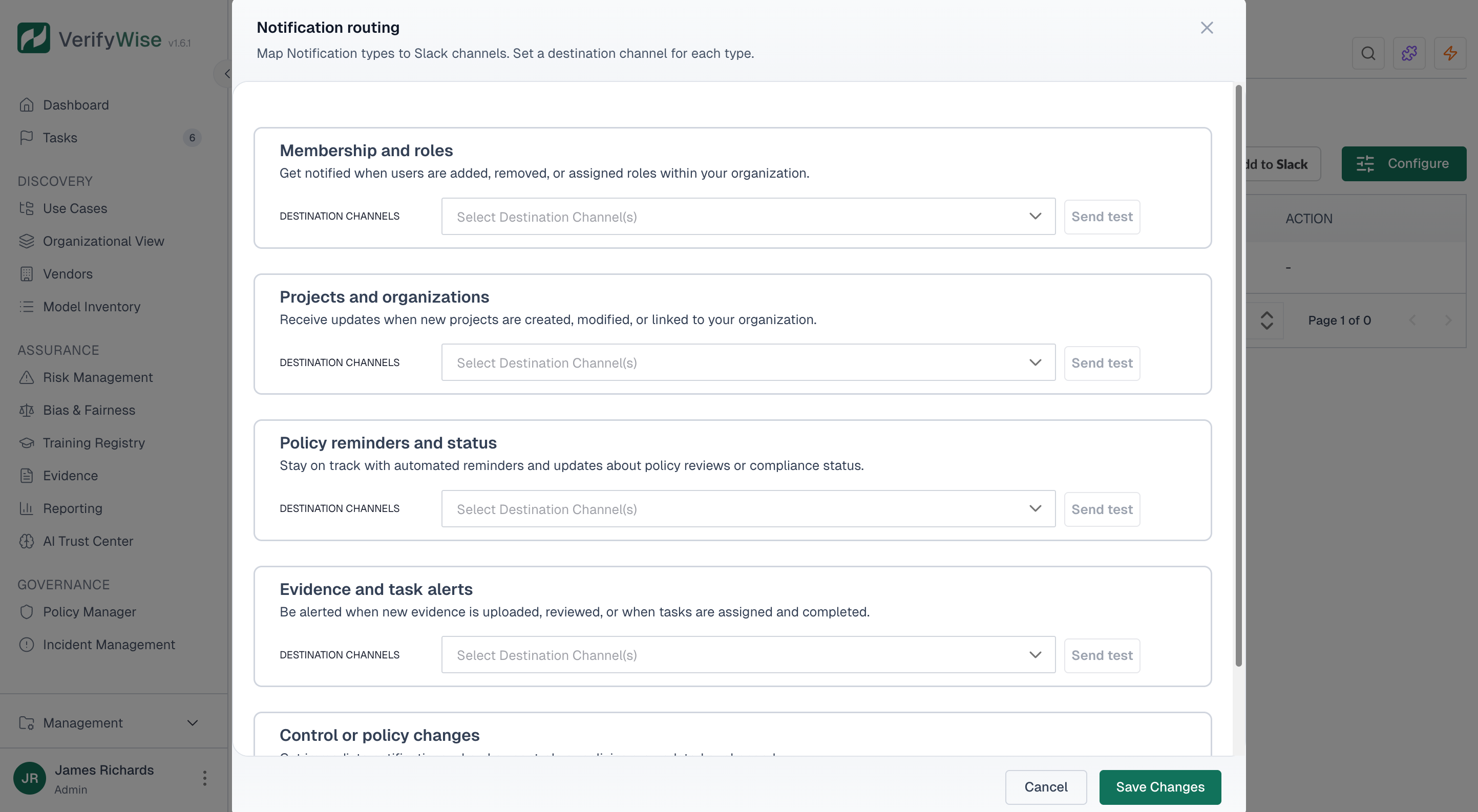
Routing decides which notification types VerifyWise sends to Slack. Each connection posts to the channel you chose when you added it.
To configure notification routing:
- On the Slack settings page, click Configure (available once at least one workspace is connected)
- In the Notification Routing dialog, open "Apply to all workspaces" and select the notification types to send
- Click Save Changes
Available notification types
You can choose from these notification types:
- Membership and roles: User invites, role changes and removals
- Projects and organizations: Project creation, updates and organization changes
- Policy reminders and status: Policy approaching review dates or status updates
- Evidence and task alerts: New evidence uploads, task assignments and completions
- Control or policy changes: Control status changes and policy updates
Adding another workspace
To connect an additional Slack workspace:
- Go to the Slack settings page
- Click Add to Slack
- Follow the authorization flow for the new workspace
- Update notification routing if needed
Removing a Slack connection
To disconnect a Slack workspace:
- Go to the Slack settings page
- Find the workspace connection in the table
- Click the delete icon in the Action column
Troubleshooting
Notifications are not appearing
- Check that the Slack extension is enabled and the connection is active in the connections table
- Verify notification routing is set up for the right channel
- Make sure the VerifyWise app hasn't been removed from your Slack workspace
- Confirm the target channel still exists
Authorization failed
- Make sure you have permission to install apps in your Slack workspace
- Try again after clearing your browser cache
- Contact your Slack workspace administrator if restrictions are in place
Frequently asked questions
Can I send notifications to private channels?
Yes. When you authorize the connection, Slack lets you pick the channel VerifyWise posts to, including private channels you belong to.
Who can see the notifications?
Anyone with access to the Slack channel where notifications are sent can see them. Plan your routing accordingly so the right people have visibility.
Can I customize the notification messages?
Notification messages use standard formats designed to be clear and actionable. Custom message formatting isn't available right now.
How often are notifications sent?
Notifications go out in real-time as events happen in VerifyWise. There's no batching or delay.